See where your technicians are, and send them to the right address
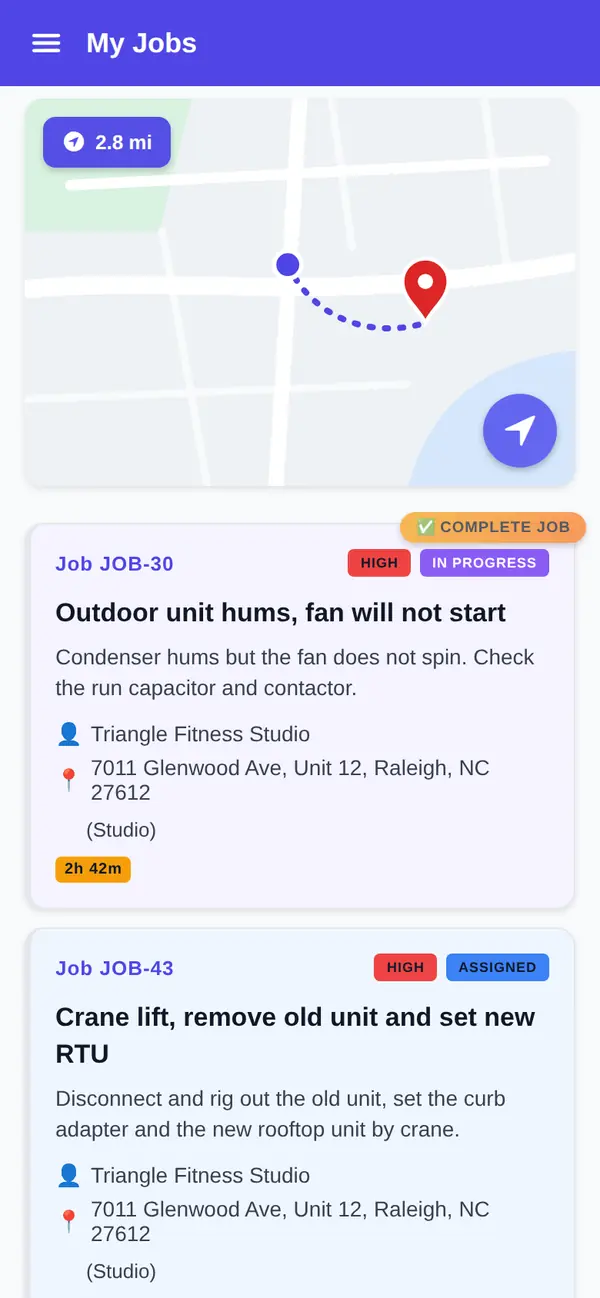
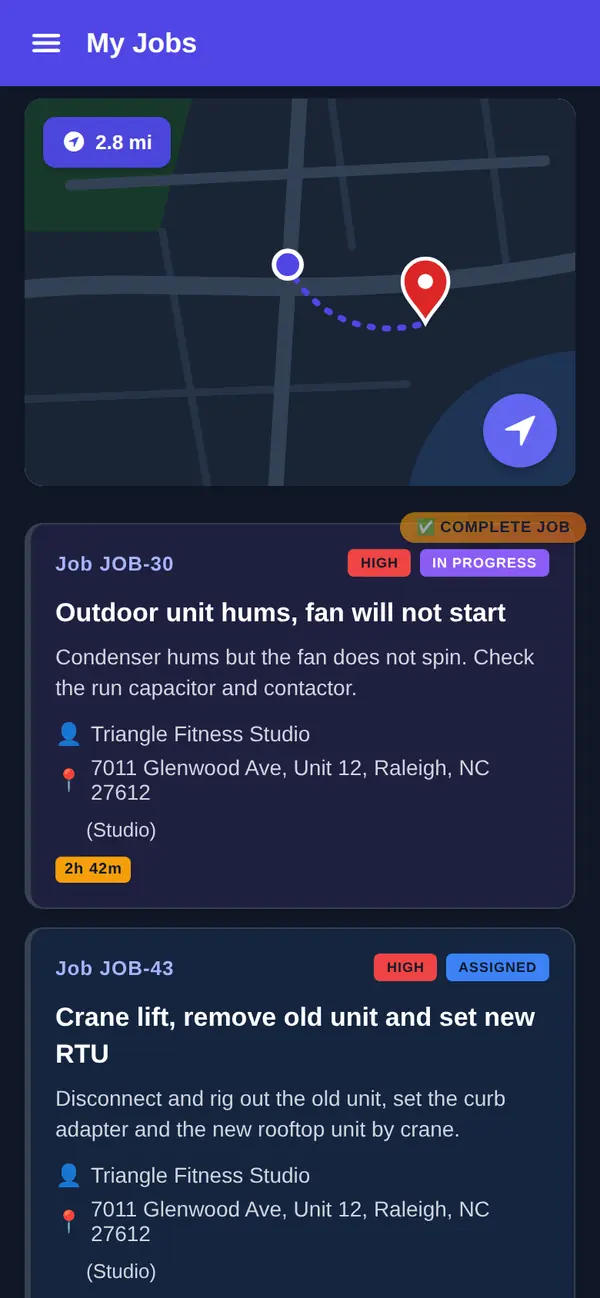
Technician GPS location and a Navigate button that opens the job address in the phone's maps app, on every FSM Navigator plan, Free included.
GPS location and Navigate come with every plan, Free included.
The 2 PM call
It's 2:10 and a customer across town has water coming through the kitchen ceiling. You need three answers fast: who's close, who's free, and who's already heading somewhere else. FSM Navigator puts each technician's GPS location on a live map next to the status they set in the app, so the office knows where people are and what they're doing before anyone picks up the phone.
Then you hand off the job. The technician taps Navigate and the address opens in their phone's maps app. Nobody reads a street number over a bad connection.
What you get
GPS location on every plan
Each technician's GPS location is included on Free, Pro and Enterprise, and shows on the live map for owners, managers and dispatchers.
Status the office can see
One tap for accepted, en route, arrived, in progress or complete, and the dispatch board picks up the change within a few minutes.
Navigate to the job
On a job with a mapped address, the address opens in the phone's maps app, with no copying or retyping.
Available or off duty
Technicians mark themselves available at the start of work and off duty at the end. On Pro, intelligent dispatch leaves off-duty technicians out of automatic assignments.
See where your technicians are, and what they're doing
A location by itself doesn't tell you much. A van parked outside a supply house could mean a parts run or a lunch break. A tech sitting at the same address for two hours could be stuck on a hard diagnosis or waiting on the customer.
That's why GPS location in FSM Navigator sits beside job status. Technicians update status with one tap from the app. The dispatch board refreshes on its own through the day, so "where is Marco?" and "is Marco done?" get answered in the same glance.
It also cuts check-in calls. When the board shows a tech is in progress at the Henley Street job, you don't need to ring them mid-repair to ask how it's going.
Technician location tracking that comes from the phone, not the truck
There are two different things people mean by GPS tracking, and it's worth knowing which one you're shopping for.
Fleet or vehicle tracking (often called telematics) uses a device installed in the vehicle. It reports where the truck is, and usually things like speed, engine data or driving behaviour, whether or not the technician is in it.
Technician location in FSM Navigator comes from the FSM Navigator app on the technician's phone, the same app they already use to see jobs and update status. There's no device to fit in the truck, and nothing is read from the vehicle.
So here's the honest tradeoff. If you need engine diagnostics, driver scoring or vehicle maintenance alerts, you want a telematics system, and FSM Navigator isn't one. If you want the office to know where technicians are while they work their jobs, and to see that next to job status, that's what this is. Some shops run both.
What the app collects, and when
Only while on duty or on a job
The app collects location in the background while a technician is on duty or has a job in transit, arrived or in progress. When they go off duty with no job under way, it stops. Android shows a notification while it's running, and iPhone shows its location indicator.
Permission comes first
Before the phone's own location prompt appears, the app shows a plain-language screen explaining what is collected and when. Only technicians are tracked; owners, managers and dispatchers are not.
Latest position only
FSM Navigator keeps only each technician's latest position. There's no location history or breadcrumb trail, and old positions are cleared out automatically.
Who sees it
Owners, managers and dispatchers see technician locations on the live map. Customers never see them.
Tap Navigate and the address opens in your maps app
Every job in the app carries its customer and service location. When the technician taps Navigate on a job with a mapped address, that address opens in the phone's maps app. The address comes straight from the job, so a typo on a sticky note can't send someone to the wrong side of town.
The maps app on the phone handles the drive. FSM Navigator doesn't plan the drive, give turn-by-turn directions or reorder the day's stops. The office decides who goes where, and the phone gets them there.
The app is native on iOS and Android and offline-first, so technicians keep seeing their jobs and updating status in a basement or a dead zone. Changes sync on their own when the phone reconnects.
How location fits into dispatch
On every plan, the dispatch board and calendar let you schedule and assign by hand, with SLA tracking. You see who's available, what they're working on and where they are, and you make the call.
On Pro and Enterprise, intelligent dispatch can make the first pass for you. It evaluates skills, availability and working hours, workload, proximity and SLA urgency, and keeps rebalancing as the day changes. Being closest is one input, not the whole decision: the nearest tech isn't much use if they're mid-install for the next three hours. Dispatchers can reassign anything by hand at any time.
Keeping the customer in the loop
Customers mostly want to know one thing: is someone coming, and roughly when. On Pro, customers get an email when the technician marks the job en route, and another when they arrive. On Enterprise, that status change can also send a one-way on-the-way text to customers who've agreed to texts, sent from your own Twilio account.
Customers don't get a live map of your technician, and nothing in the email or text links to one. The message tells them someone is on the way, and that's it.
What the same app connects to on Pro
Time tracking builds hours, overtime and punctuality into timesheets from the availability status technicians already set in the app (available, lunch, off duty), so there's no second clock-in step.
Mileage tracking logs the drive automatically when a technician marks a job en route, with year-end mileage records and a CSV export, and mileage cost feeds job profitability. Technicians agree to mileage tracking first.
For how mileage capture behaves with no signal, read a mileage tracker that works offline.
Before you switch it on, tell your crew
Before you roll out any way to see where field technicians are, have a short conversation with your team about what the office can see, why you want it and how you'll use it. Five minutes at the morning meeting beats a rumour in the parking lot.
Free or Pro: which one fits
Start on Free if you want GPS location, Navigate, one-tap status, the dispatch board and the native mobile app. Free covers up to 5 users.
Move to Pro when you want intelligent dispatch to do the first pass, en-route emails for customers, and time and mileage tracking. Pro is $34.99 per user per month, or $27.99 per user per month billed annually, with no user limit. Office staff who log in are users too. Full plan details are on the pricing page.
More on the technician app
Mobile Technician App
Everything technicians do from the phone, on every plan.
Scheduling and Dispatch Board
Schedule and assign by hand, with SLA tracking.
Intelligent Dispatch
Automatic technician matching that keeps rebalancing through the day (Pro).
Time Tracking
Timesheets built from the status technicians already set (Pro).
Mileage Tracking
Drives to jobs logged automatically, with year-end records (Pro).
Text Notifications
One-way appointment and on-the-way texts (Enterprise).
Questions Owners Ask About Technician Location
What is technician GPS tracking software?
It's software that shows the office where field technicians are while they work. In FSM Navigator, each technician's GPS location comes from the app on their phone and shows on a live map next to the job statuses they set. A Navigate button opens the job address in the phone's maps app. It's included on every plan, Free included.
Is technician GPS location included on the Free plan?
Yes. Technician GPS location and the Navigate button are included on every plan, Free included, along with one-tap job status, the dispatch board and the native iOS and Android technician app. The Free plan covers up to 5 users with no credit card. Pro adds intelligent dispatch, customer en-route emails, time tracking and mileage tracking.
Is this the same as fleet or vehicle GPS tracking?
No. Fleet tracking, often called telematics, uses a device installed in the vehicle and reports on the truck itself. Technician location in FSM Navigator comes from the technician's phone through the FSM Navigator app, so there's no hardware to fit. It isn't vehicle tracking and doesn't read speed, engine data or driving behaviour. If you need those, you need a telematics system alongside it.
What does the Navigate button do?
When a technician taps Navigate on a job with a mapped address, the address opens in the phone's maps app, and the maps app handles the drive from there. FSM Navigator doesn't plan the drive, give turn-by-turn directions or reorder the day's stops. Navigate is included on every plan, Free included.
Who can see a technician's location, and how long is it kept?
Owners, managers and dispatchers see it on the live map. The app asks for permission with an explanation first, collects location only while a technician is on duty or has a job under way, and stops when they go off duty. FSM Navigator keeps only each technician's latest position, with no location history, and clears out old positions automatically.
Does a technician's location affect who gets the job?
On Free, you assign jobs by hand from the dispatch board, so you decide. On Pro and Enterprise, intelligent dispatch evaluates skills, availability and working hours, workload, proximity and SLA urgency, then keeps rebalancing as the day changes. Proximity is one input among those, not the whole decision. Dispatchers can reassign any job by hand at any time.
Can my customers see where the technician is?
Not on a live map. On Pro, customers get an email when the technician marks the job en route, and another when they arrive. On Enterprise, that status change can also send a one-way on-the-way text, from your own Twilio account, to customers who've agreed to receive texts. Neither includes a link to follow the technician's location.
What should I tell my technicians about location?
Tell them what the office can see, why you want it and how you'll use it, before you roll it out. Technicians mark themselves available at the start of work and off duty at the end, and the app shows a disclosure and asks permission before it collects anything. A short, plain conversation up front tends to settle questions before they turn into rumours.
Know where everyone is by this afternoon
GPS location, Navigate and one-tap status come with every plan. Set up your team and send the first job today.