Online Booking Software for Home Services
From Google search to paid invoice, in one tool. Your booking page isn't a separate app: it's part of FSM Navigator®. A customer requests a visit, you approve it, and it goes on your schedule. Nobody types it in twice.
Included in Pro and Enterprise · Build and preview your page during the trial · It goes public when your paid plan starts
Two apps, one customer, typed in twice
It's Monday, 7:30 AM. Six booking requests came in over the weekend. They're sitting in the booking app, and none of them are on the schedule.
So someone in the office retypes them into the field service software. Name, phone, address, service, window. They check whether this Mrs. Lopez is the one from last spring. Then they call or text the customer so she knows where things stand.
That's what happens when your booking app and your field service software are two different tools. The customer is typed in twice. The request lives in one place and the visit in another. And the customer who asked on Saturday night doesn't hear back until Monday.
Google doesn't fix it either. The appointment link on your Business Profile is a plain link. It opens a booking page, and that's all it does. Nothing reaches your schedule unless the tool behind that page is the one you schedule from.
A Booking App Beside Your Software, or Built Into It
| With a separate booking app | With FSM Navigator |
|---|---|
| The booking sits in one app. The visit gets typed into another. | Approve the request, and it becomes a scheduled visit. |
| New customers are typed in by hand, and duplicates pile up. | When you approve, you link the request to a customer you already have, or create a new one. |
| Booking emails get buried in an inbox. | Requests land in your Service Requests list, and your staff get an email for each one. |
| The customer waits to hear back, or calls. | The customer is emailed when the request is received, and again when you approve it. |
| The services on the booking page drift away from your price list. | The services on your page come from your pricebook. |
| Connector fees, field mapping, syncs that break quietly. | Nothing to connect. It's the same system. |
| A booking subscription on top of your field service software. | Included in Pro and Enterprise. |
It's 9 PM and someone's AC quit. Can they reach you?
They search, find your Google profile and see a phone number. Your office closed four hours ago. They call the next shop on the map.
Most callers who hit voicemail don't leave a message. One call-tracking company's platform data puts it at less than 3%. Your booking page takes the request at 9 PM, and you can approve it at 7 the next morning. On Enterprise, an AI receptionist can answer the phone call too, and file it as a Pending request in the same review queue.
A Booking Page Customers and Google Can Read
On Pro, your business gets its own booking page with a link you can share anywhere. On Enterprise, you can also put the page on your own web address, such as book.yourcompany.com.
Everything a Customer Checks
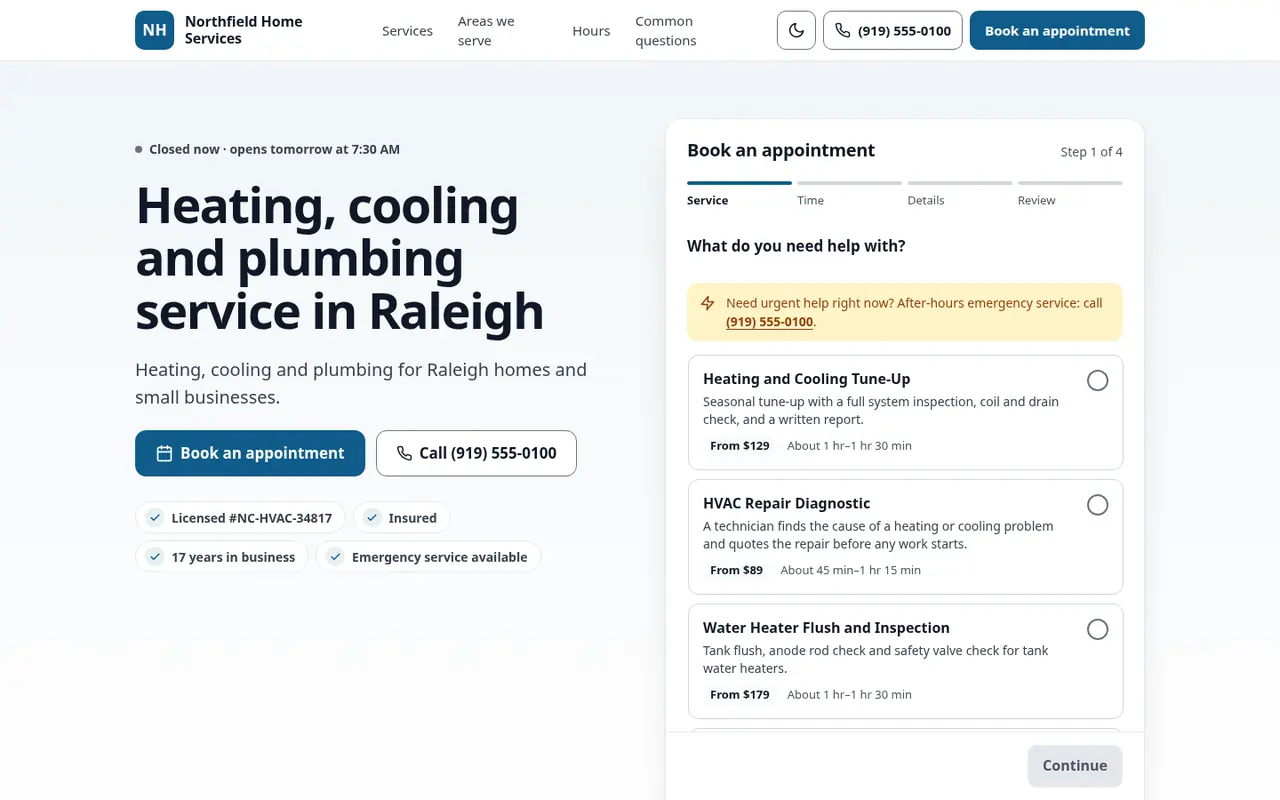
Your logo and brand color, your services, your service area with a ZIP check, your hours with an open-now badge, an about section, FAQs and trust badges such as licensed, insured and years in business.
Built-In Local SEO
The page carries LocalBusiness structured data for your trade: your hours, the areas you serve, your service catalog, your FAQs and a booking action. Your booking pages are also listed in a sitemap for search engines.
No Website? You're Covered
For a lot of shops, this page is their web presence. It's designed to be the link behind the "Appointments" option on your Google Business Profile, and you can put the same link on your social pages and invoices.
Built for Phones First
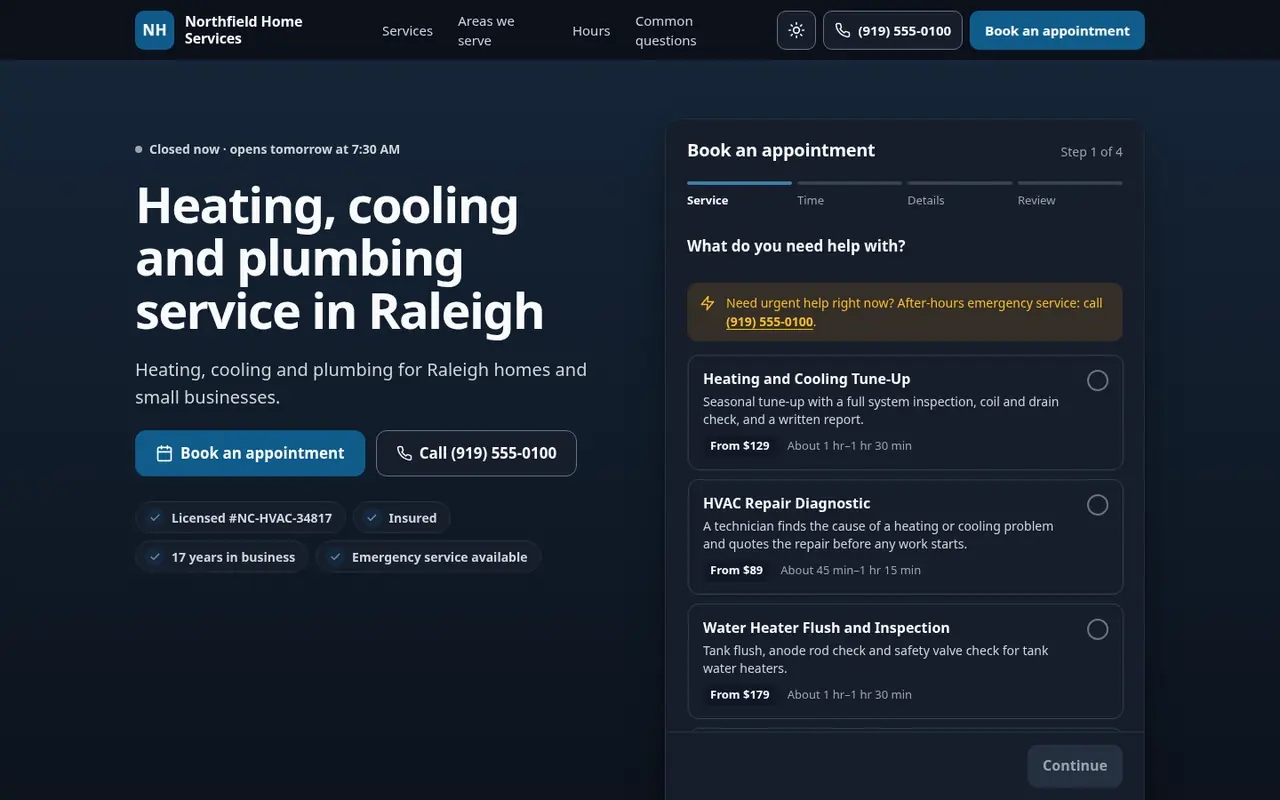
Most people find you on a phone, so the page is designed for one first. It has a light and a dark theme: you choose the default, and visitors can switch.
Accessible
The page is built to WCAG 2.1 AA, so customers using a screen reader, a keyboard or large text can still send you a request.
Built-In Security
Your booking page is protected from the first visit. Hidden trap fields, a minimum time to fill in the form and single-use form tokens keep bots and spam out, and repeat submissions are rate-limited per visitor and per business. Customer details are stored encrypted, abusive text is blocked, and nothing reaches your schedule until your office approves it.
Online Booking Without Losing Control of Your Schedule
Arrival Windows, Not Technicians
Customers choose a service, a date and one of your arrival windows, like 8 to 10 AM, then enter their details. That's how your crews already run the day.
You Approve Every Request
Nothing lands on a technician's day until someone in your office says yes. A website request is a request, not a confirmed appointment, until you approve it.
Out-of-Area Requests Stay Out
List the cities and ZIP codes you serve. A customer outside them is told so, and asked to call you instead.
Show Prices Your Way
Each service can show "from $X", "free estimate" or "quoted on site". In a 2024 survey reported by ACHR News, 70% of homeowners said they were more likely to call an HVAC contractor who is transparent on pricing.
Emergencies Still Call
A call-now path sits on the page for burst pipes and no-heat nights. The form is for planned work.
Fields for Commercial Customers
Optional business fields collect the business name and an on-site contact, and any customer can leave access notes, like a gate code.
What Happens When a Customer Sends a Request
- A customer finds you on Google, or follows your link, and picks a service, a date and an arrival window.
- The request lands in your Service Requests list. Your staff get an email, and the customer gets an email confirming the request was received.
- Someone in your office reviews it and approves it, linking it to an existing customer or creating a new one.
- It becomes a scheduled visit, and the customer is emailed that the request was approved.
- If the work needs a price first, send a quote with up to three options. The customer picks one and signs for it online.
- From there it runs like any other visit in FSM Navigator: on the schedule, on the technician's phone, and on the invoice. Once the visit is completed, the customer is asked to rate it and invited to review you on Google.
On Enterprise, work orders, inventory and asset records are in the same tool too.
Enterprise also adds text notifications. A customer who ticks the box on your booking page gets a text when the request arrives, when the visit is confirmed, the day before, and when the technician is on the way, sent using your own Twilio account and in addition to the emails above.
Get Your Page Live
Everything is set up from the booking dashboard in the app, in six tabs: Profile, Services, Booking settings, a live Preview, Share & SEO, and Status.
1. Start Your Pro Trial
Build your page during the 14-day trial and preview it in the app the whole time.
2. Add Your Services
Pick services from your pricebook, set your service area and arrival windows, and upload your logo.
3. Go Live
When the trial ends and your paid plan starts, the page goes public. Paste the link into your Google Business Profile: here's the step-by-step guide.
Booking Page or Customer Portal?
Your booking page is where new customers find you and request a visit. The Customer Portal is where existing customers log in to see their history, accept and sign quotes, and pay invoices. Same tool, two doors.
On Your Own Website and Domain
Enterprise adds two extras. The booking widget puts the request form on your own website, and a custom domain shows your booking page at your own address. Wherever a request comes from, your team approves it before anything goes on the schedule.
Online Booking for Your Trade
Online Booking for HVAC
Tune-ups and diagnostics book online. No-heat and no-cool calls still ring through.
Online Booking for Plumbers
Planned work requests online. Burst pipes still call.
Add a Booking Link to Google
How to put your booking page on your Google Business Profile, step by step.
Scheduling
Where an approved request becomes a visit on the board.
Mobile App
The technician working the visit the customer asked for.
Choosing Field Service Software
Six questions that separate the demo from the product you'll actually run.
Questions Owners Ask About Online Booking
Do I need a separate booking app?
No. The booking page is part of FSM Navigator. Requests arrive in the same app you quote, schedule, dispatch and invoice from, so there is nothing to connect or keep in sync.
What happens when a customer sends a request?
It lands in your Service Requests list and your staff get an email about it. The customer gets an email confirming the request was received. Nothing is on the schedule yet: it is a request until you approve it.
What happens when I approve a request?
You link it to a customer you already have, or create a new customer from it, and it becomes a scheduled visit. The customer gets an email telling them the request was approved.
Do customers book a specific time?
They pick a date and one of the arrival windows you set, such as 8 to 10 AM. Your office approves the request before it goes on the schedule.
Can I stop requests from outside my service area?
Yes. List the cities and ZIP codes you serve. The page checks the customer's ZIP code, and a request from outside your area is turned away with a note to call you instead.
Do I have to show prices?
No. Each service can show a starting price, "free estimate" or "quoted on site". The services come from your pricebook.
Does Google send bookings into FSM Navigator?
The appointment link on your Google Business Profile opens your booking page, so the requests customers send from it land in FSM Navigator. The link itself is a plain link: it does not connect Google to any scheduling software.
I don't have a website. Is that a problem?
No. Your booking page is a public page with your services, service area, hours, about section and FAQs. Many shops point their Google profile, social pages and invoices at it.
Can customers book from my own website or my own web address?
On Enterprise, yes. The booking widget puts the request form on your own website, and a custom domain shows your booking page at an address such as book.yourcompany.com. On Pro, you share your booking page link. Either way, your team approves every request before it is scheduled.
Which plans include online booking?
Pro ($34.99 per user per month) and Enterprise ($59.99 per user per month). It is not on the Free plan. There is no per-page fee and no separate booking subscription.
Does my page go live during the free trial?
You can build your page and preview it in the app during the 14-day trial. It goes public when the trial ends and your paid plan starts.
One Tool From First Click to Paid Invoice
Build your booking page during your trial, and put it on Google when your plan starts.
14-day free trial · Nothing charged until the trial ends · Online booking is included on Pro and Enterprise