Technician mobile app workflow
What it is
The FSM Navigator mobile app for iOS and Android is where technicians run their day. They see their jobs, tap through each stage of the visit, add photos, parts, notes and forms, and complete the job on site. It keeps working without a signal and syncs when the connection comes back. The app, including offline use, is on every plan.
Where it fits
flowchart LR
    D[Dispatch] --> MJ[My Jobs]
    MJ --> V[On-site visit]
    V --> P[Photos and notes]
    V --> PU[Parts used]
    V --> F[Forms and signature]
    V --> C[Completed job]
    C --> I[Invoice]
    PU --> INV[Inventory]
Dispatch puts a job on the technician's My Jobs list. The technician works the visit in the app, and what they record on site (parts, photos, forms, the final comment) is what the office uses to invoice and what your stock counts use to stay accurate.
Statuses
Technicians move a job forward with buttons. Each button sets the next status.
stateDiagram-v2
    direction LR
    state "In Transit" as InTransit
    state "In Progress" as InProgress
    [*] --> Assigned
    Assigned --> InTransit : En Route
    InTransit --> Arrived : Arrived
    Arrived --> InProgress : Start Job
    InProgress --> Completed : Complete
    Completed --> [*]
The app shows statuses in capitals, like IN PROGRESS. The buttons are En Route, Arrived, Start Job and Complete. Only one job can be en route at a time.
Step by step
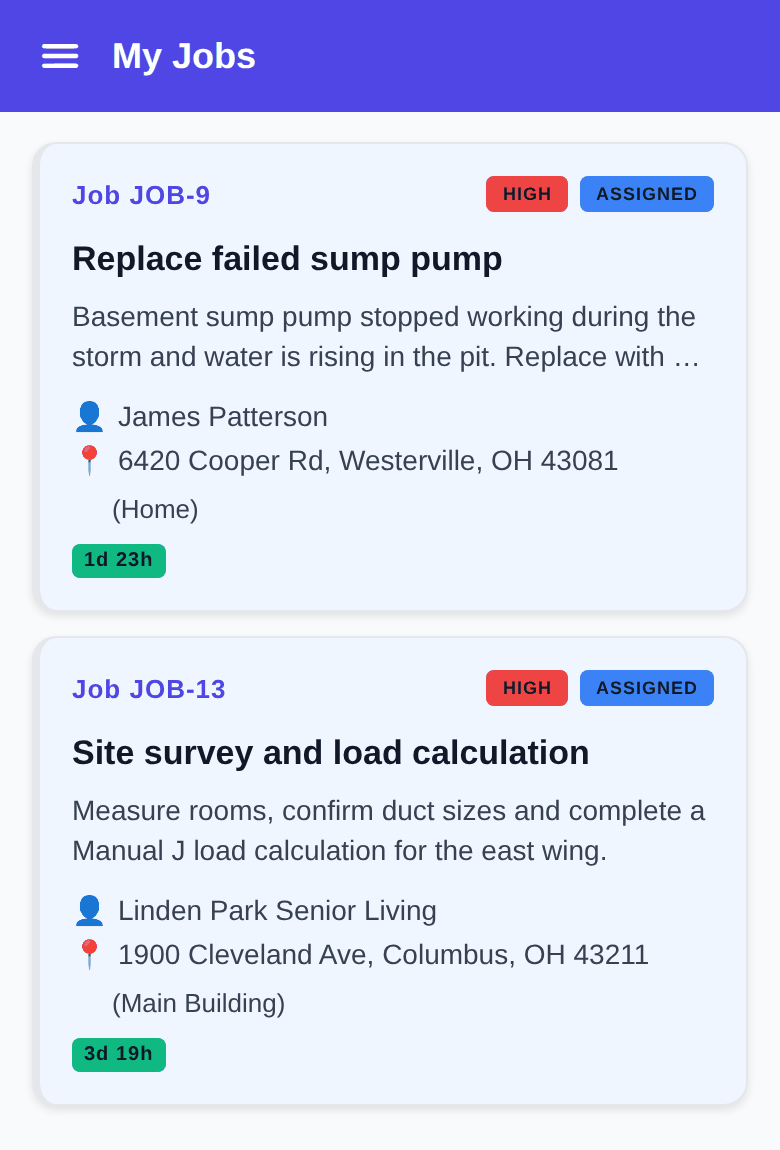
- Open the app and go to My Jobs. Your assigned jobs are listed here.
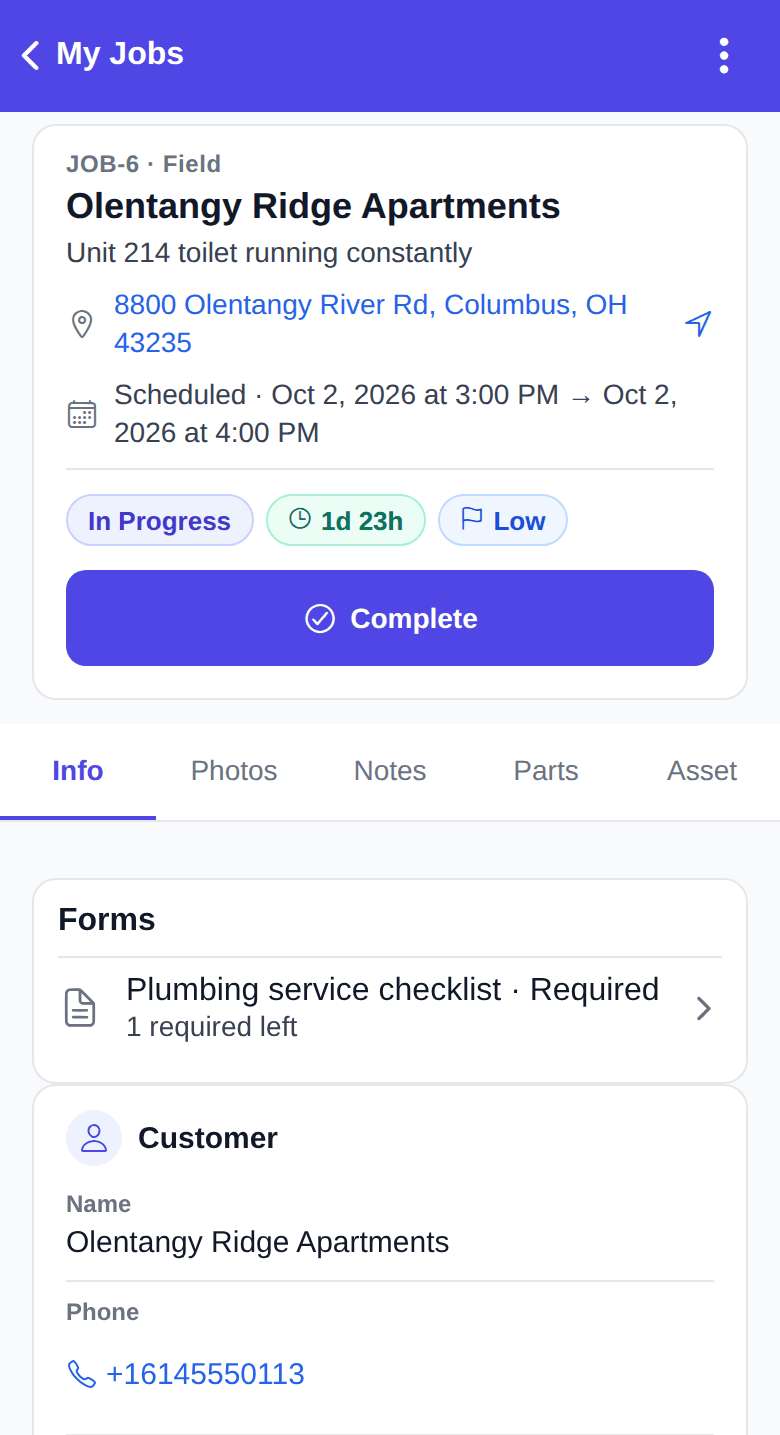
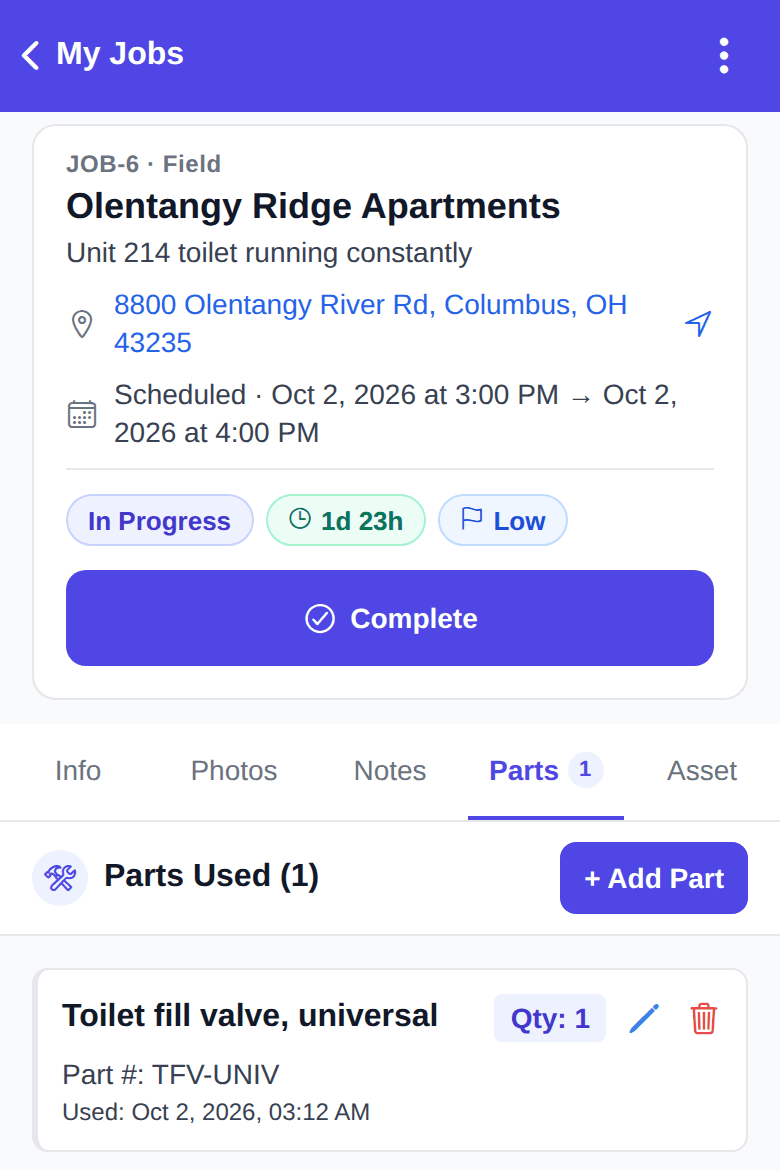
- Open the job. The tabs are Info, Photos, Notes, Parts and Asset, with a Job Forms card when forms are attached.
- Tap En Route when you leave. Tap Arrived when you get there.
- Tap Start Job and do the work. Add photos, notes and the parts you used as you go.
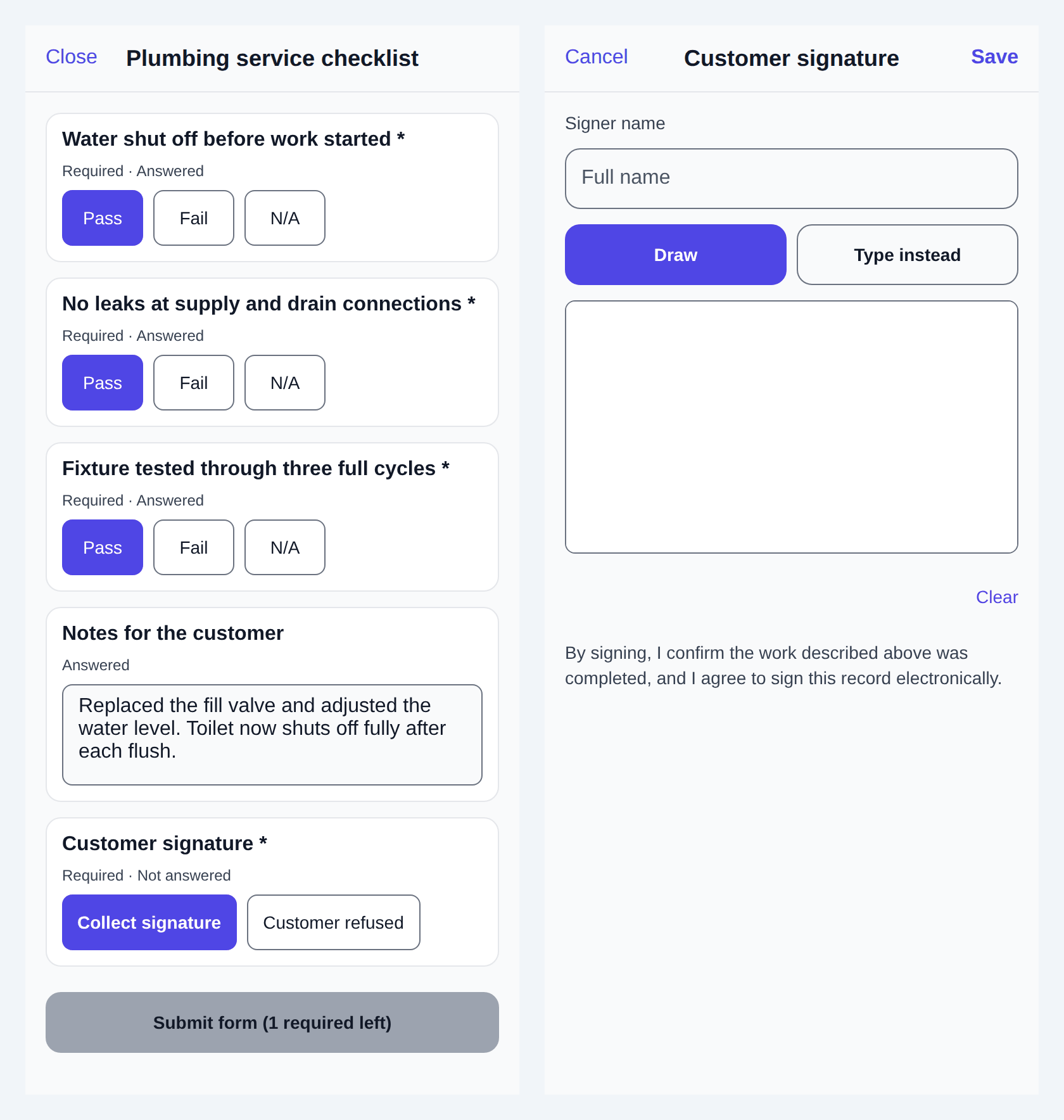
- Fill in any job forms and capture the customer's signature (Pro). If the customer won't sign, you can record that they refused.
- Tap Complete and write a short final comment about what you did.
- Move on to the next job on your list, or tap Get Next Job if your company uses auto-assignment.
Working offline
You can keep working with no signal. These sync later on their own:
- Status changes, job edits, notes, parts, photos, forms and signatures
- Your availability and mileage trips
- Team chat messages, customers and locations, inventory and asset changes
When you're offline the app shows "You are offline. Changes will sync when you reconnect." and a count of changes waiting. When you complete a job offline, its parts, notes and photos sync before the completion does.
These need a connection:
- Receiving new assignments
- Opening a job that was never loaded on your phone
- Editing or discarding a mileage trip that hasn't synced yet
If your session expires while changes are waiting, the app asks you to sign in again so it can send them.
What happens next
- Previous stage: Scheduling and dispatch
- Next stage: Service agreements and memberships
For the full detail, see the Technician guide, the daily workflow, Mileage tracking, the mobile app guide, Getting started on mobile, Job management, Offline mode, Push notifications, Job images, Job parts and Job forms.
Who can do this
| Action | Who can do it |
|---|---|
| My Jobs and the status buttons | Technician (on jobs assigned to them) |
| Mileage (Pro) | Technician |
| Job Queue and Team Status | Owner, Manager, Dispatcher |
Tips and common questions
Why can't I go En Route on a second job? You already have a job that's In Transit, Arrived or In Progress. Finish it first.
My changes say "queued". Are they lost? No. They're saved on your phone and send as soon as you're back online.
Can office staff use the app too? Yes. Owners, Managers and Dispatchers get a Job Queue with filters (All, Unassigned, Urgent, In Progress, On Hold, Pending, Completed) and a Team Status screen.
Learn more about the mobile app.