How scheduling and dispatch work
Plan
Scheduling, dispatch and manual assignment are on every plan. Auto-assignment and booking windows need Pro.
What it is
Scheduling puts a job on a date and time. Dispatch gets it to the right technician. On every plan your office team assigns jobs by hand from the Jobs page and the live dispatch board. On Pro, auto-assignment picks the technician for you based on skills, SLA deadlines, workload and who's available, and keeps adjusting as the day changes.
Where it fits
flowchart LR
    J[New job] --> S[Schedule]
    BW[Booking window] --> S
    AV[Technician availability] --> D[Dispatch]
    S --> D
    D -->|Manual| T[Assigned technician]
    D -->|Auto-assignment| T
    T --> M[Mobile app]
    D --> LD[Live dispatch]
A job lands on the schedule with a date and, on Pro, a booking window. Dispatch looks at which technicians are available and assigns one, either by hand or automatically. The technician then sees the job in the mobile app, and the office watches progress on the live dispatch page.
Statuses
Technicians set their own availability. Some statuses can receive new work and some can't.
stateDiagram-v2
    direction LR
    state "Can receive work" as Open {
        state "Wrap Up" as WrapUp
        Available --> WrapUp
        WrapUp --> Lunch
        Lunch --> Available
    }
    state "Cannot receive work" as Closed {
        state "Off Duty" as OffDuty
        OffDuty --> Vacation
    }
    Open --> Closed
Closed --> OpenAvailable, Wrap Up and Lunch can receive work. Off Duty and Vacation can't. A technician can switch between any of them; the diagram just groups them. The dispatch summary counts your team as Available, Busy or Off-Duty.
Step by step
- Open the Dispatcher Dashboard from the side menu. Its page header reads "Live dispatch". The Live map shows your team, with Fit to fleet, Traffic and Auto-follow controls.
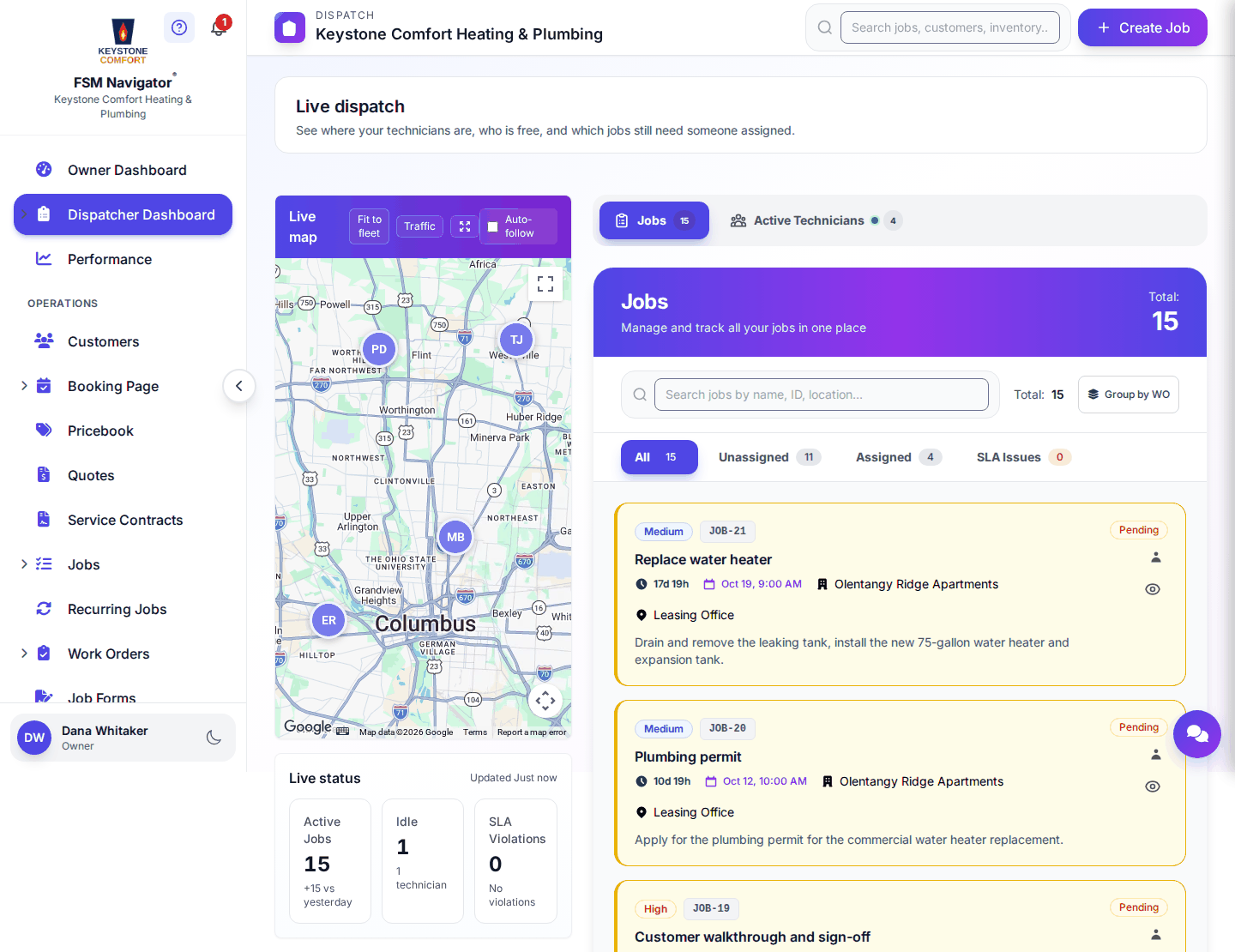
- Check the Live status panel for Active and Idle technicians and any SLA Violations.
- Use the Jobs tab to see what still needs a technician, and the Active Technicians tab to see who's free.
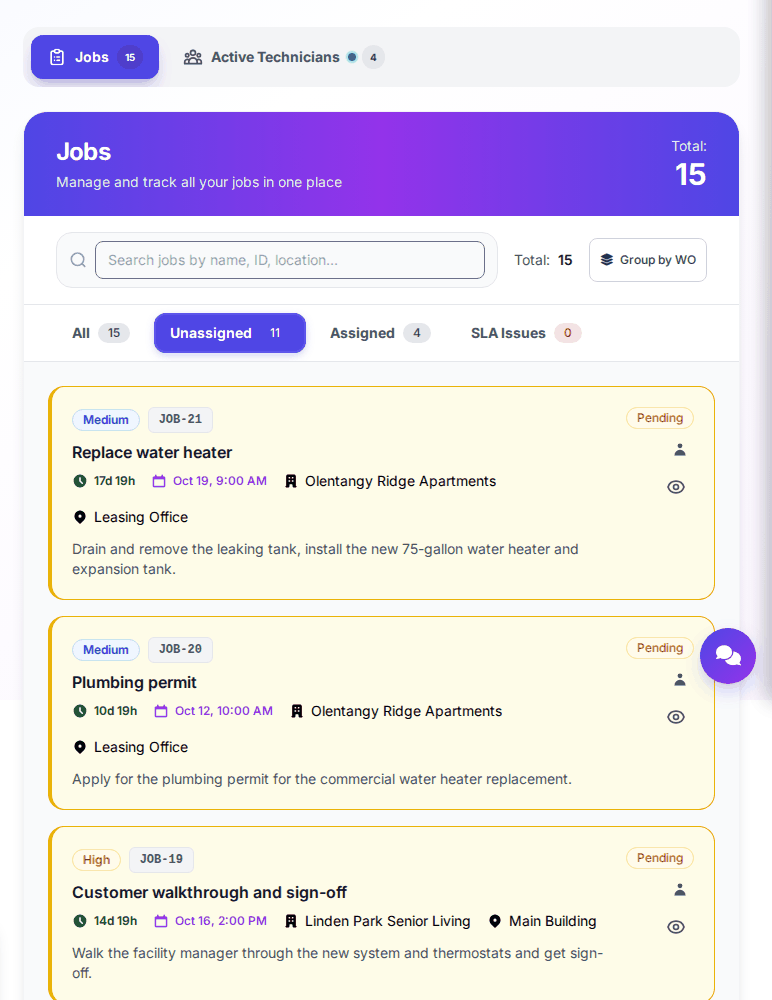
- Assign the job to a technician. On Pro, auto-assignment does this for you when a job comes in.
- Watch the Live Dispatch Feed as technicians head out, arrive and finish.
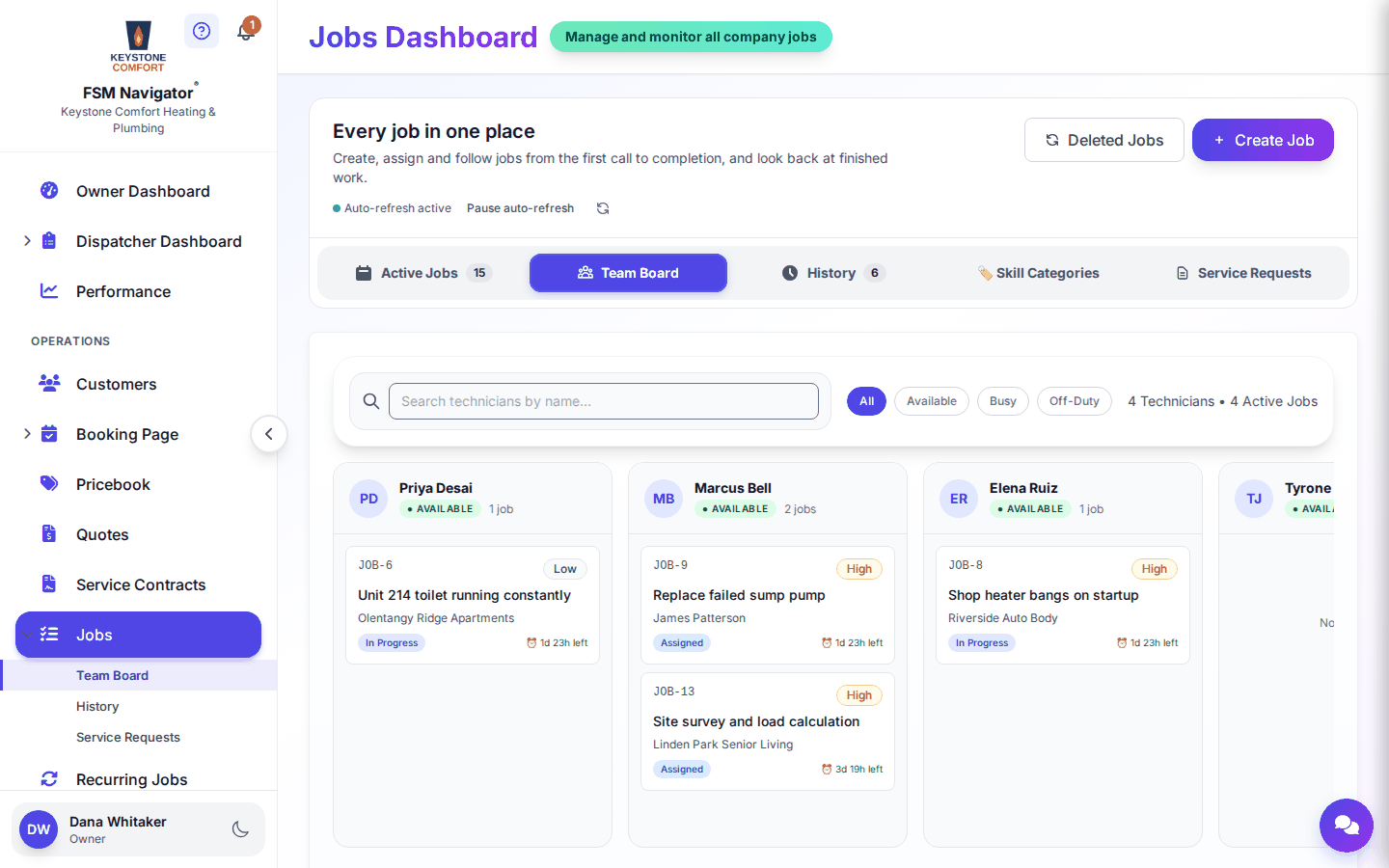
- For a whole-team view by technician, open the Team Board tab on the Jobs page.
What happens next
- Previous stage: Jobs and work orders
- Next stage: Technician mobile workflow
For the full detail, see Scheduling, the dispatch board, Technician availability, the Team Board, Auto-assignment, Booking time windows, Auto-assignment settings and Dispatcher notes.
Who can do this
| Action | Who can do it |
|---|---|
| Use the live dispatch page | Owner, Manager, Dispatcher |
| Assign jobs | Owner, Manager, Dispatcher |
| Set availability | Each technician, for themselves |
Tips and common questions
How does auto-assignment pick a technician? It looks at skills, SLA deadlines, how much is already on each technician's plate and who's available, then matches the job to the best fit. It keeps rebalancing through the day as jobs and availability change.
What do technicians see when auto-assignment is on? Instead of picking jobs themselves, they tap Get Next Job in the mobile app. The job they should go to next shows a HEAD HERE badge.
Can I limit how many jobs one technician gets? Yes. Auto-assignment settings include a maximum number of jobs per technician per day, your business hours and your company's skills.
Learn more about scheduling and auto-assignment.