How jobs and work orders work
Plan
Jobs are on every plan. Recurring jobs and job forms need Pro. Work orders need Enterprise.
What it is
A job is one visit or one piece of work at a customer's service location, done by one technician. A work order is a bigger project made of several jobs, called sub-jobs, that you plan, track and bill as one. Use a job for a furnace repair; use a work order for a four-week commercial install with a permit, an inspection and three field visits.
Where it fits
flowchart LR
    L[Service location] --> J[Job]
    Q[Accepted quote] --> J
    R[Approved service request] --> J
    Q --> W[Work order]
    W --> S[Sub-jobs]
    G[Service agreement visit] --> J
    J --> D[Schedule and dispatch]
    J --> I[Invoice]
    W --> I
Jobs come from many places: you create them by hand, convert an accepted quote, approve a service request, or let a service agreement or recurring schedule create them. A work order holds its sub-jobs, and its invoice is created from the work order itself, not from each sub-job.
Statuses
Jobs
stateDiagram-v2
    direction LR
    state "In Transit" as InTransit
    state "In Progress" as InProgress
    state "On Hold" as OnHold
    [*] --> Pending : Job created
    Pending --> Assigned
    Assigned --> Pending
    Assigned --> InTransit
    InTransit --> Arrived
    Arrived --> InProgress
    InProgress --> Completed
    Assigned --> OnHold
    OnHold --> Assigned
    Assigned --> Declined
    Assigned --> Cancelled
A job starts as Pending. It becomes Assigned when a technician is set, then moves through In Transit, Arrived and In Progress to Completed. On Hold pauses the job and its SLA timer, and asks you for a reason. Completed, Declined and Cancelled are final, though the office team can reopen a job. The diagram shows the main path; Job statuses lists every allowed move.
Work orders (Enterprise)
stateDiagram-v2
    direction LR
    state "In Progress" as InProgress
    state "On Hold" as OnHold
    [*] --> Draft : Work order created
    Draft --> Active
    Active --> InProgress
    InProgress --> OnHold
    OnHold --> InProgress
    InProgress --> Completed
    Completed --> Closed
    Draft --> Cancelled
    Active --> Cancelled
A work order is Draft while you plan it, Active once it's approved to go, In Progress while the sub-jobs are being done, then Completed and Closed. You can put it On Hold or cancel it before it's completed. Cancelling a work order also cancels its open sub-jobs.
Step by step
A single job
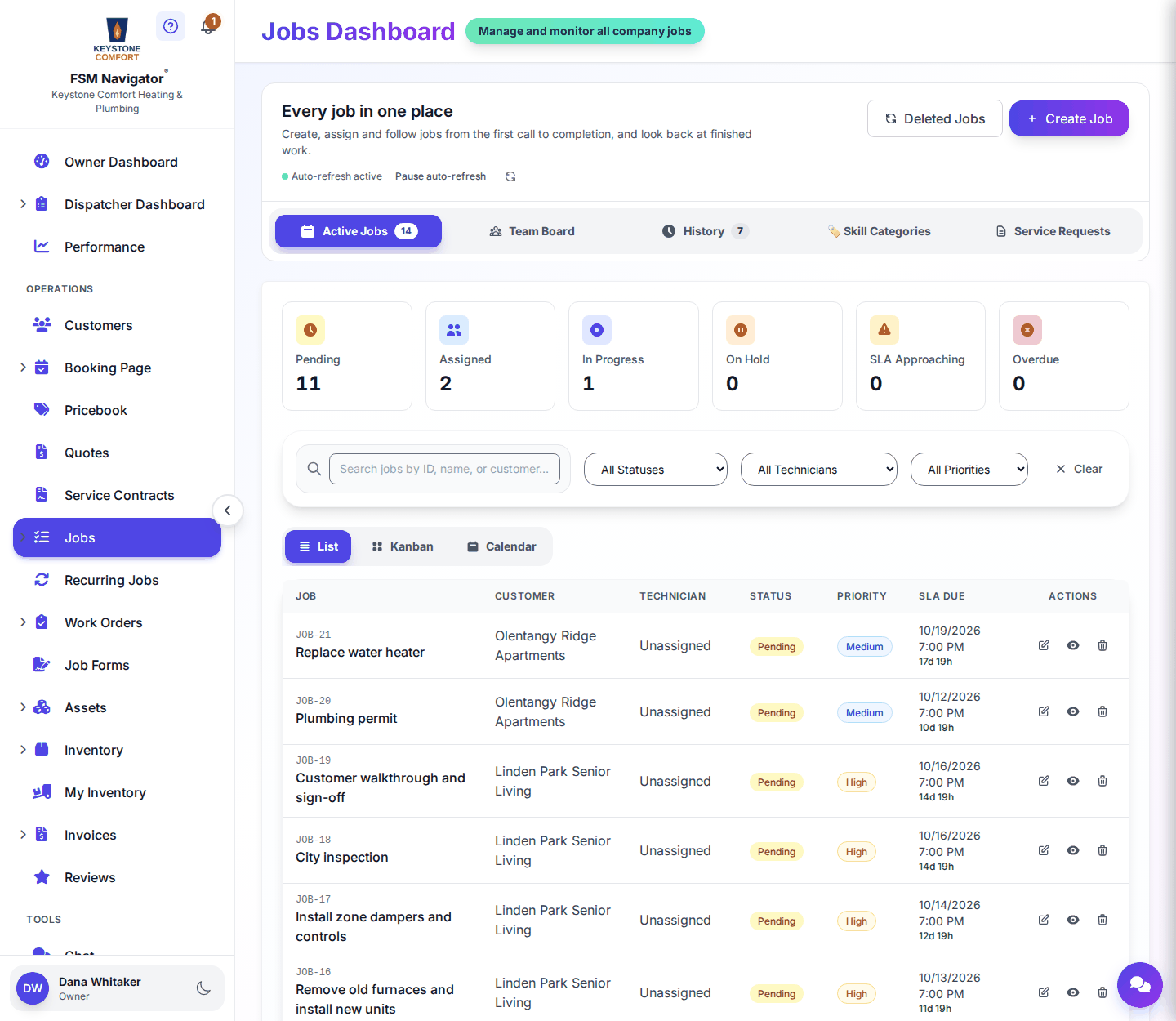
- Open Jobs from the side menu. The Active Jobs tab lists everything still open; switch between List, Kanban and Calendar views.
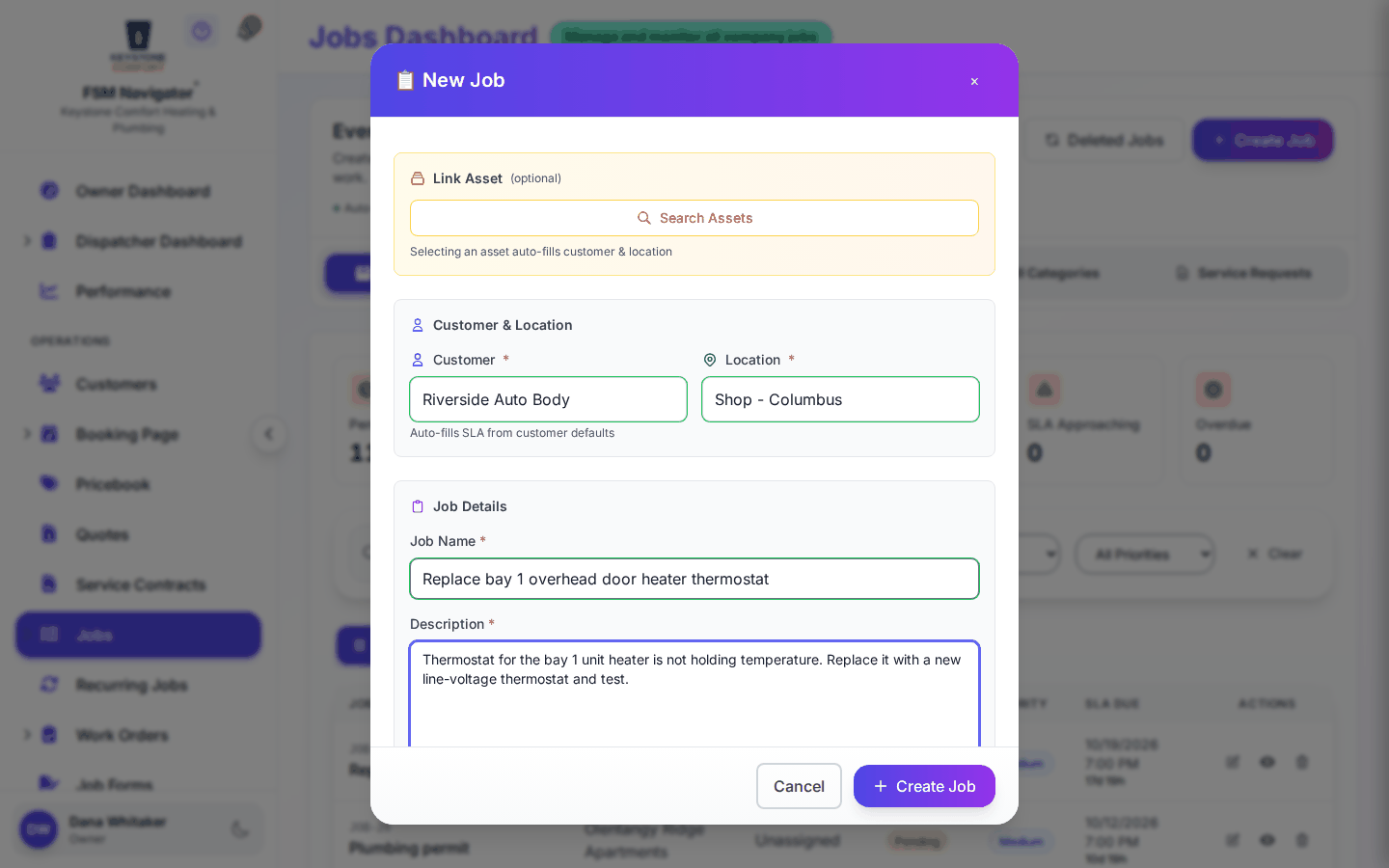
- Create a job: pick the customer's service location, describe the work and set the priority.
- Assign a technician, or let auto-assignment do it on Pro. The job moves to Assigned.
- The technician works the job from the mobile app. You'll see the status change as they go.
- When the work is done, the technician completes the job with a final comment and fills in any required forms.
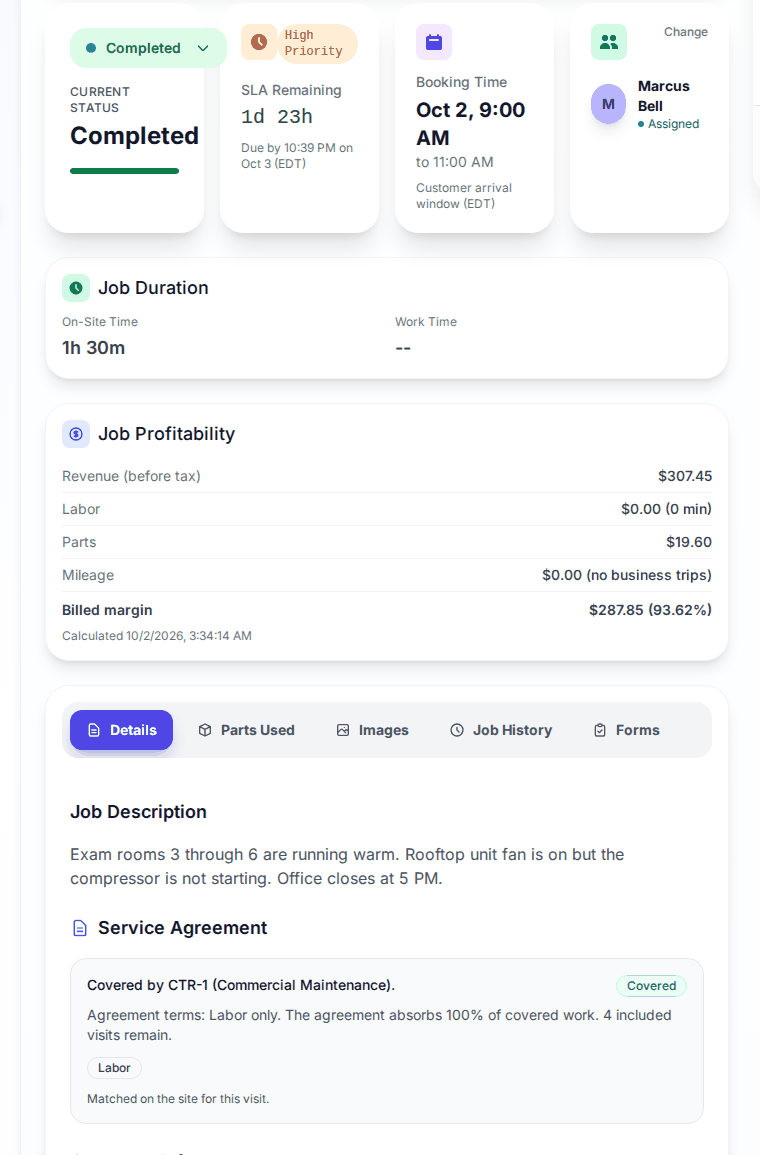
- Finished jobs move to the History tab, ready to invoice.
A work order (Enterprise)
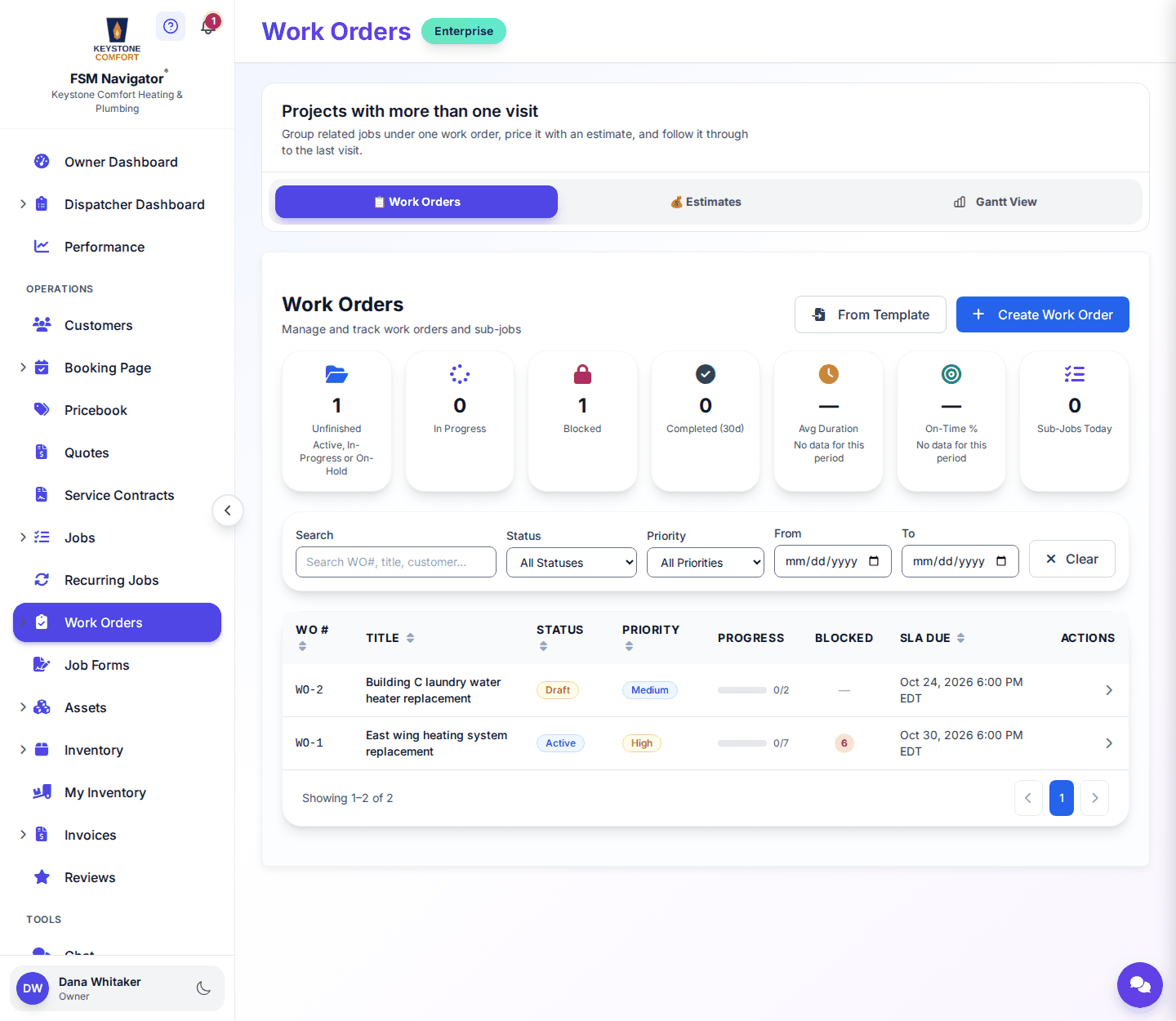
- Open Work Orders and create a work order for the customer. Start from a template if you have one.
- Add sub-jobs. Each has a type (Field, Office, Remote, Permit, Procurement, Inspection or Approval), can be optional, and can depend on another sub-job finishing first.
- If the work order needs estimate approval, send the estimate. The work order can't go from Draft to Active until the estimate is Approved.
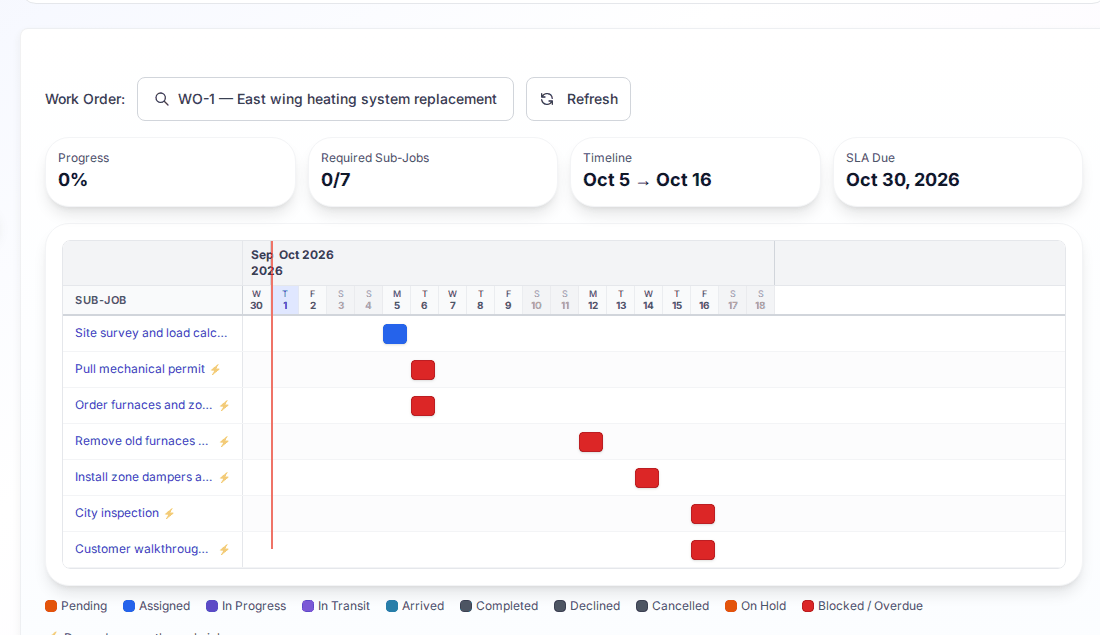
- Track progress on the Work Orders list or the Gantt View.
- Mark it Completed when its completion rule is met, then Closed. If customer approval is required, the customer approves before you can close it.
What happens next
- Previous stage: Quotes and estimates
- Next stage: Scheduling and dispatch
For the full detail, see Creating jobs, Job statuses, Kanban and calendar views, Job forms, Recurring jobs, SLA timers, Job history, Work orders, Creating work orders, Sub-jobs and dependencies, Templates, Gantt view and Budget tracking. New here? Try Create your first job.
Who can do this
| Action | Who can do it |
|---|---|
| Create, assign and delete jobs | Owner, Manager, Dispatcher |
| Change a job's status | Owner, Manager, Dispatcher, and the assigned Technician |
| Cancel a job | Owner, Manager, Dispatcher (technicians can't cancel) |
| Create job form templates (Pro) | Owner, Manager |
| Create and manage work orders (Enterprise) | Owner, Manager |
Tips and common questions
Why can't my technician start a second job? A technician can have one active job (In Transit, Arrived or In Progress) at a time. They finish the current one before heading to the next.
Why won't a job complete? Completing needs a final comment, then any required forms and required custom fields. Fill in what's missing and try again.
What happens when a job is Declined? The customer gets an email offering to rebook.
Learn more about work orders and job forms and signatures.