How invoicing and payments work
Plan
Invoicing and invoice PDFs are on every plan. The Free plan includes 100 invoices a month. Online payments through the customer portal need Pro.
What it is
An invoice bills your customer for finished work. Most invoices are created from a completed job, and FSM Navigator fills in the customer, location, job description, labor and parts used for you. Customers can pay online through the customer portal on Pro, or you record a payment by hand when they pay by check or cash.
Where it fits
flowchart LR
    J[Completed job] --> I[Invoice]
    W[Work order] --> I
    G[Agreement billing period] --> I
    Q[Quote deposit] --> DI[Deposit invoice]
    I --> P[Payment]
    DI --> P
    P --> R[Refund]
    P --> RP[Reports]
Invoices come from four places: a completed job, a whole work order (Enterprise), a service agreement's billing period, or a quote deposit. Payments come in through the portal or are recorded by your team, and every payment feeds your reports.
Statuses
stateDiagram-v2
    direction LR
    state "Partially Paid" as PartiallyPaid
    state "Partially Refunded" as PartiallyRefunded
    [*] --> Generated
    Generated --> Sent
    Sent --> PartiallyPaid
    Sent --> Paid
    PartiallyPaid --> Paid
    Paid --> PartiallyRefunded
    Paid --> Refunded
    Paid --> Disputed
    Generated --> Void
A new invoice is Generated. It becomes Sent when it goes to the customer, then Partially Paid or Paid. The status doesn't change on its own when the due date passes, but an unpaid invoice past its due date counts as past due in your totals and reminder emails either way. A paid invoice can be Refunded (fully or partly) or marked Disputed if the payment is challenged. Void cancels an invoice. Void and Refunded are final.
Step by step
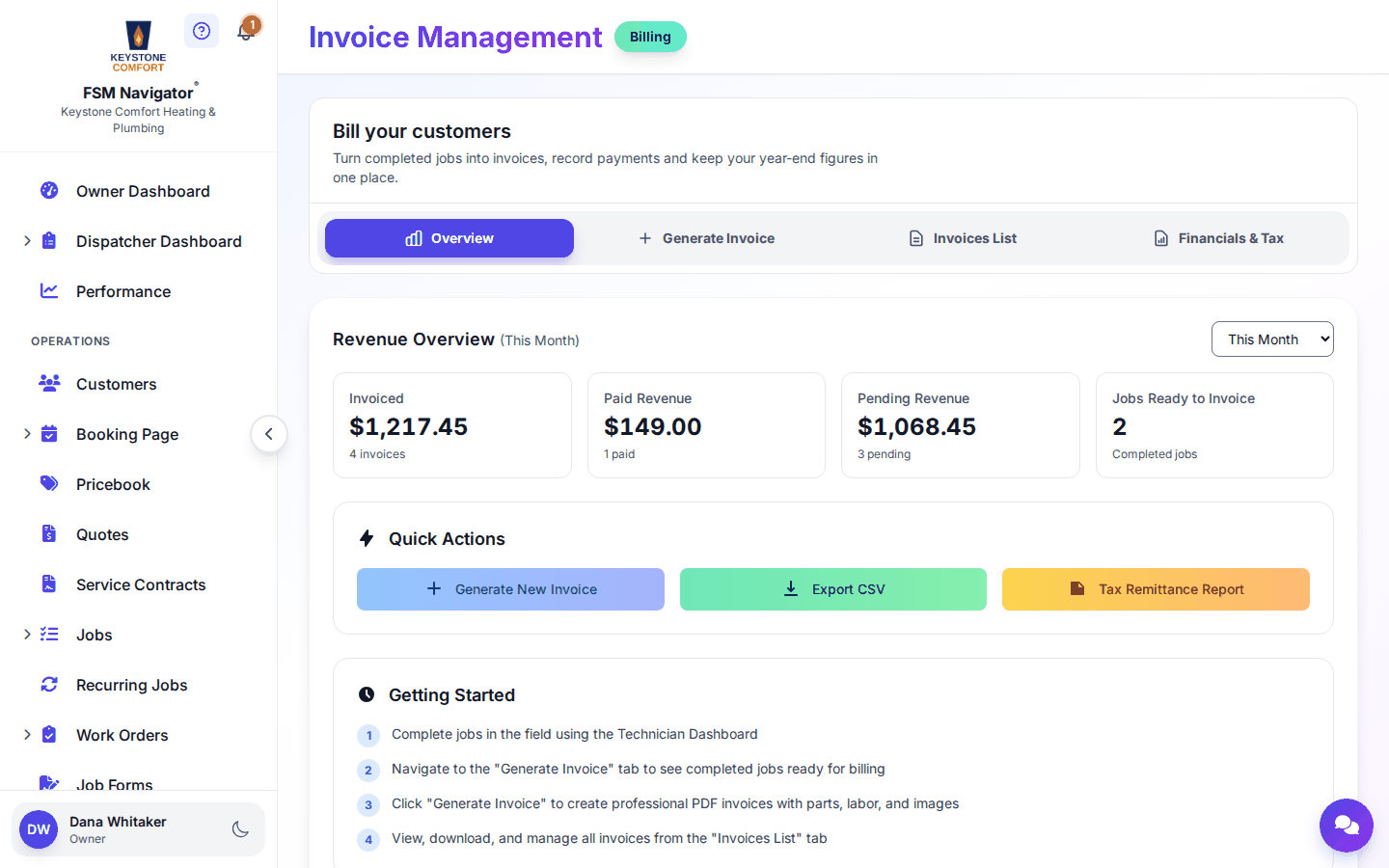
- Open Invoices from the side menu. The page is titled "Bill your customers".
- On the Generate tab, pick a completed job. The customer, location, description, labor and parts used are filled in.
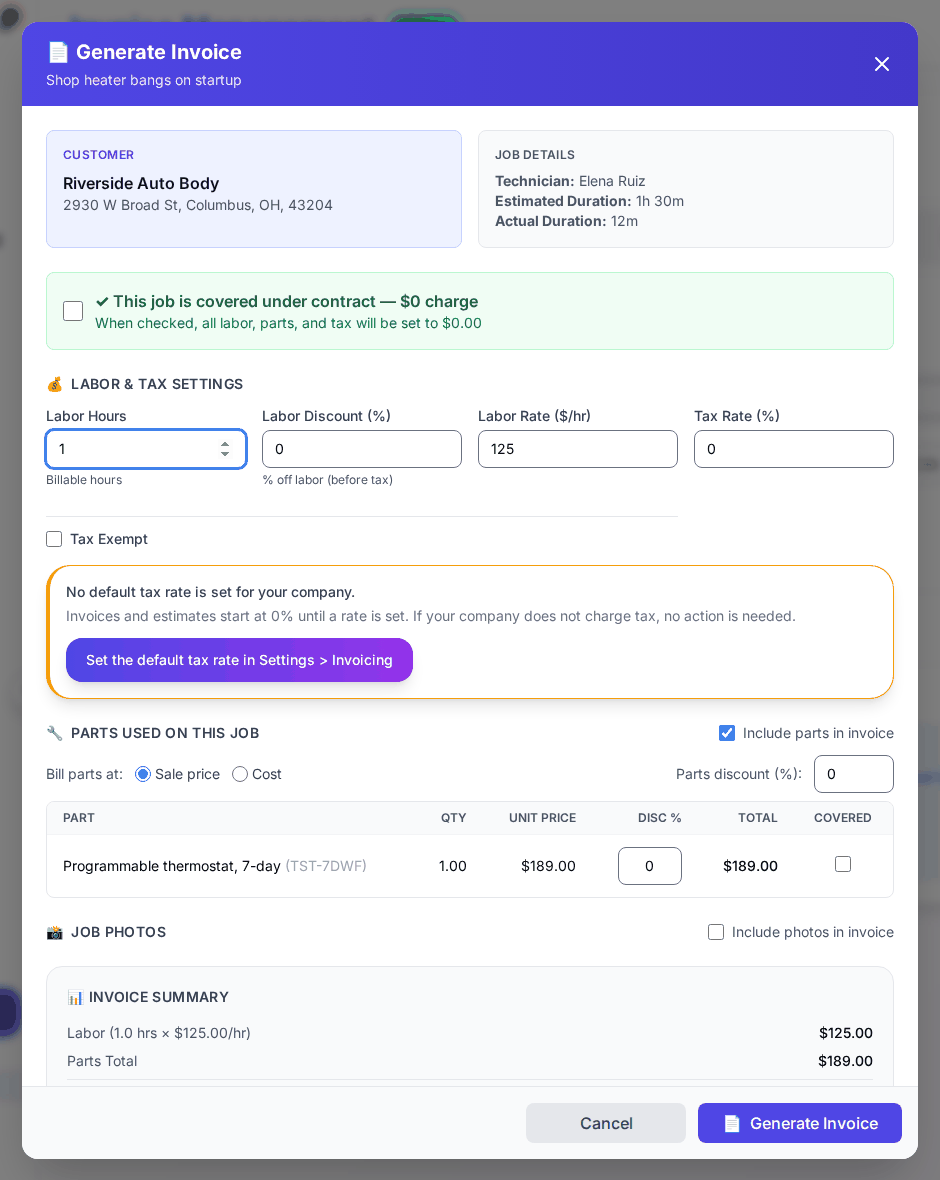
- Check the line items, discounts and tax, then create the invoice.
- Send it by email with the PDF attached. On Pro, the customer can pay with Pay Now in the portal.
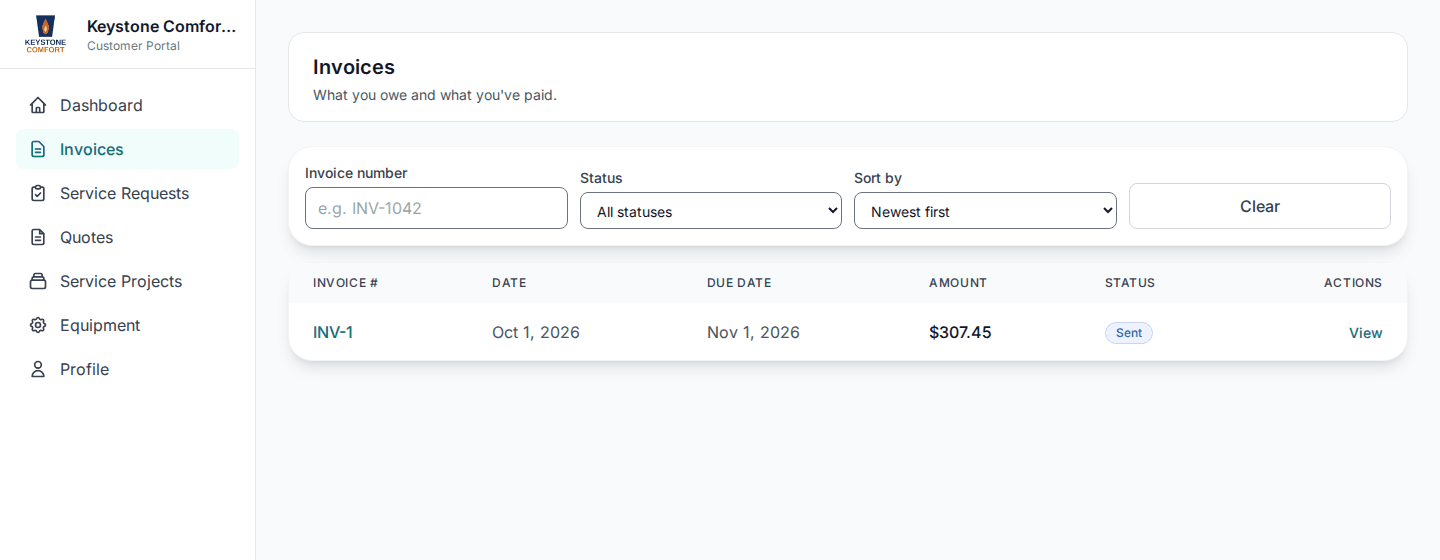 The Pay Now button shows next to an open invoice once your company has online payments set up.
 - If they pay another way, record the payment on the invoice.
- If something needs to be returned, record a refund with the amount and a reason.
- Track what's open on the List tab. Customers with past-due invoices get reminder emails at 3, 7, 14 and 30 or more days.
What happens next
- Previous stage: Inventory and parts
- Next stage: Reporting
For the full detail, see Invoicing, Creating invoices, the invoice workflow, PDF and email, Payments and refunds, Tax configuration, Portal payments, Stripe Connect, QuickBooks and Invoice settings.
Who can do this
| Action | Who can do it |
|---|---|
| Create, send and void invoices | Owner, Manager |
| Record payments and refunds | Owner, Manager |
| Pay an invoice online | Your customer, in the portal (Pro) |
Tips and common questions
Can I invoice each sub-job of a work order? No. On Enterprise, a work order is invoiced as a whole, from the work order itself.
Can invoices be created automatically? Yes. In Company Settings → Invoicing, turn on Auto-create Invoices on Completion. It's off by default. Auto-send Invoice Emails sends them out for you too.
Is there a fee for online payments? A platform fee applies to online payments. See pricing for the current rate.
What happens to a quote deposit? It becomes its own invoice, separate from the bill for the finished work.
Learn more about online payments in the customer portal.