How inventory and job parts work
Enterprise feature
Inventory is on the Enterprise plan. Without it, the inventory pages open read-only.
What it is
Inventory tracks the parts you buy, where they're stored and where they go. Stock can sit in a warehouse, on a technician's vehicle (van stock), with a technician, or at a job site. When a technician records the parts they used on a job, those parts come out of stock and show up on the invoice.
Where it fits
flowchart LR
    S[Supplier] --> PO[Purchase order]
    PO --> WH[Warehouse]
    WH -->|Transfer| VAN[Van stock]
    VAN --> PU[Parts Used on the job]
    J[Job] --> RP[Required Parts]
    RP --> PU
    PU --> I[Invoice]
    PU --> H[Stock history]
Parts come in on a purchase order, land in a warehouse, and move to vans by transfer. A job can list the Required Parts it's planned to need. When the technician records Parts Used, the stock is deducted and the parts are pre-filled on the invoice.
Statuses
Purchase orders have their own statuses.
stateDiagram-v2
    direction LR
    state "Pending Approval" as PendingApproval
    state "Partially Received" as PartiallyReceived
    [*] --> Draft : Create Purchase Order
    Draft --> PendingApproval : Submit for Approval
    PendingApproval --> Draft : Return to Draft
    PendingApproval --> Approved : Approve
    Approved --> Sent : Send to Supplier
    Sent --> Acknowledged : Mark Acknowledged
    Acknowledged --> PartiallyReceived : Partially Received
    PartiallyReceived --> Received : Fully Received
    Received --> Closed : Close PO
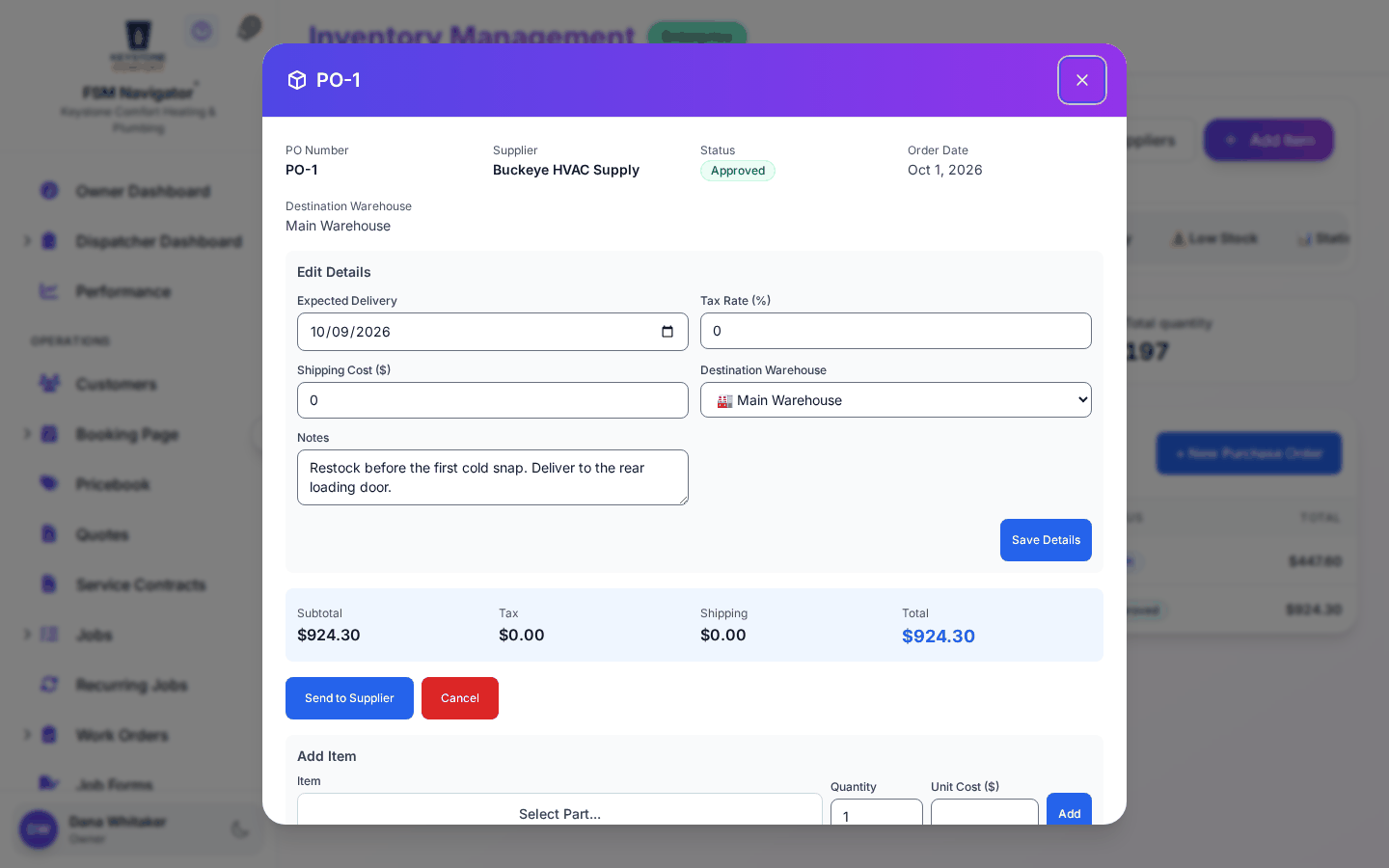
A purchase order starts as Draft, goes for approval, and is sent to the supplier once Approved. As stock arrives it becomes Partially Received and then Received, and you close it when you're done. You can cancel a purchase order any time before it's received.
Step by step
- Open Inventory from the side menu. The page is titled "Parts and stock".
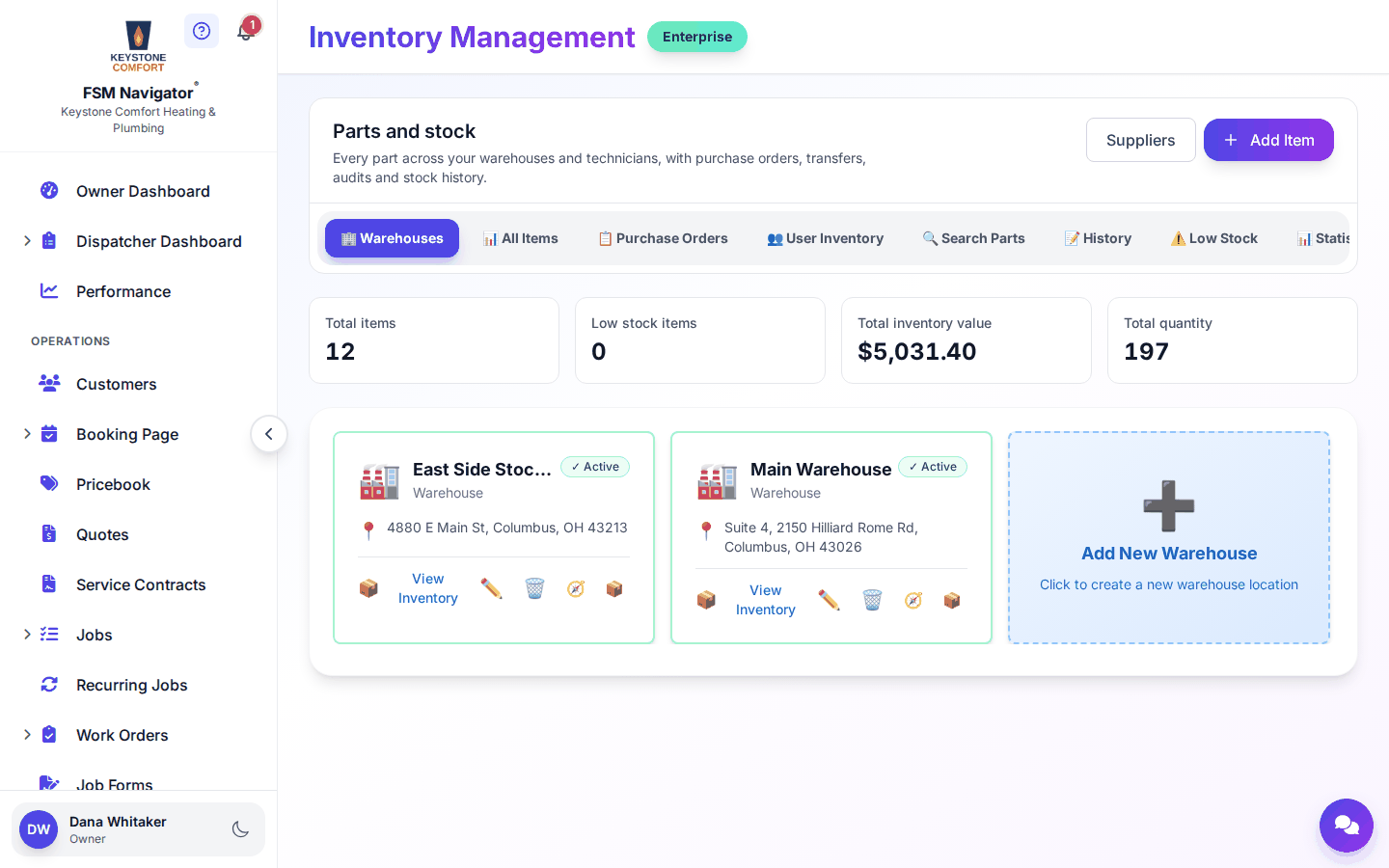
- Set up your warehouses and add parts on the All Items tab.
- Order stock on the Purchase Orders tab. Submit, approve and send the order, then receive it when it arrives.
- Move parts to a technician's vehicle on the Transfer tab.
- On a job, list the Required Parts if you know what's needed.
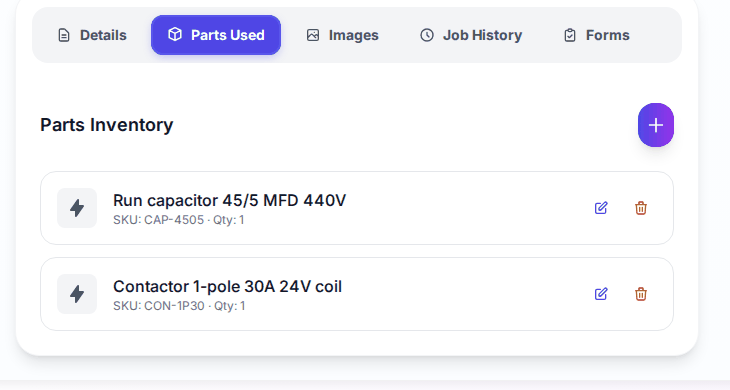
- The technician records Parts Used on the job, from the web or the mobile app. Those parts are deducted from stock as "Used (job completion)".
- Watch the Low Stock tab, and reorder before you run out.
What happens next
- Previous stage: Service agreements and memberships
- Next stage: Invoicing and payments
For the full detail, see Inventory, Warehouses and stock, the parts catalog, Purchase orders, Van stock, Technician inventory, Stock transfers, Low stock alerts, Job parts and Inventory on mobile.
Who can do this
| Action | Who can do it |
|---|---|
| Open the inventory pages | Owner, Manager, Dispatcher, Inventory Manager |
| Add and edit items, transfer stock | Owner, Manager, Inventory Manager |
| See part prices and costs | Owner, Manager, Inventory Manager |
| See and use your own stock | Technician (on the "Stock you carry" page) |
Tips and common questions
What's the difference between Required Parts and Parts Used? Required Parts is the plan: what you expect the job to need. Parts Used is what actually went in. Only Parts Used comes out of stock.
Where do technicians see their own stock? On the My Inventory page, titled "Stock you carry", with tabs for My Stock, Find Parts, QR Transfer, Low Stock and History.
What does the stock history show? Every movement, labelled Added, Removed, Received, Sent, Used (job completion) or Adjusted.
Learn more about inventory management and parts tracking.