How equipment and asset records work
Enterprise feature
Asset management is on the Enterprise plan.
What it is
An asset is a piece of equipment you install, service or track, like a rooftop unit, a water heater or a fire panel. Each asset belongs to a customer and a service location, so every job at that address can show the equipment's full history.
Where it fits
flowchart LR
    C[Customer] --> L[Service location]
    L --> A[Asset]
    A --> M[Maintenance schedule]
    A --> W[Warranty]
    A --> J[Job]
    A --> G[Service agreement coverage]
    A --> P[Portal Equipment page]
Assets sit between the location and the work. A job at the location shows the asset's Job History, a service agreement can cover it, and on Enterprise your customer can see their equipment on the portal's Equipment page.
Statuses
stateDiagram-v2
    direction LR
    state "Pending Install" as PendingInstall
    state "In Maintenance" as InMaintenance
    state "In Transit" as InTransit
    state "Non-Compliant" as NonCompliant
    [*] --> PendingInstall
    PendingInstall --> Active
    Active --> Idle
    Idle --> Active
    Active --> InMaintenance
    InMaintenance --> Active
    Active --> InTransit
    InTransit --> Active
    Active --> NonCompliant
    NonCompliant --> Active
    Active --> Lost
    Lost --> Active
    Active --> Retired
    Retired --> Decommissioned
    Decommissioned --> [*]
A new asset starts as Pending Install and becomes Active once it's in service. From there it can move to Idle, In Maintenance, In Transit, Non-Compliant, Lost or Retired, and most of those can go back to Active. Decommissioned is final. This diagram shows the main paths; Asset status lifecycle lists every allowed move.
Step by step
- Open Assets from the side menu and go to the Assets tab.
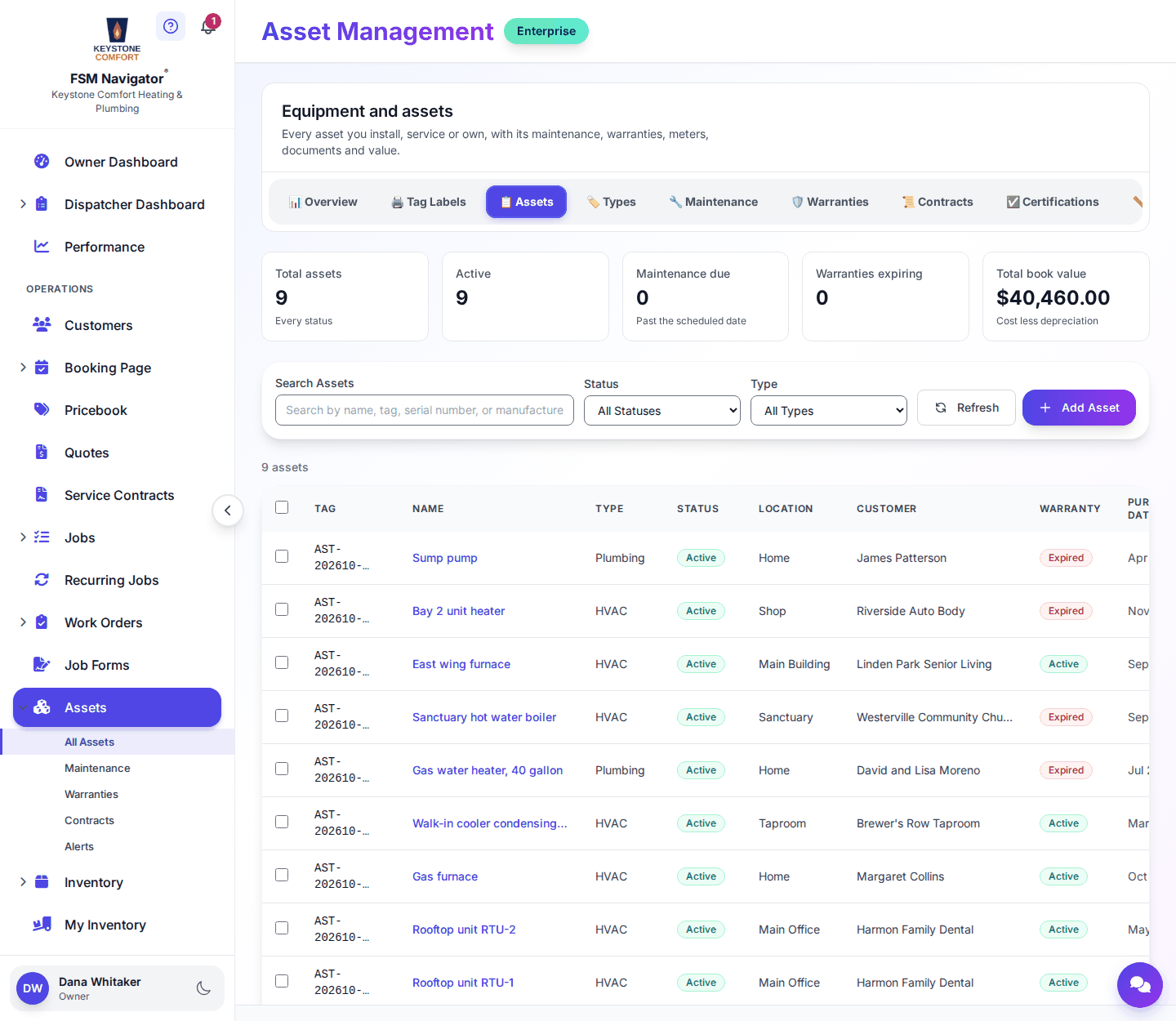
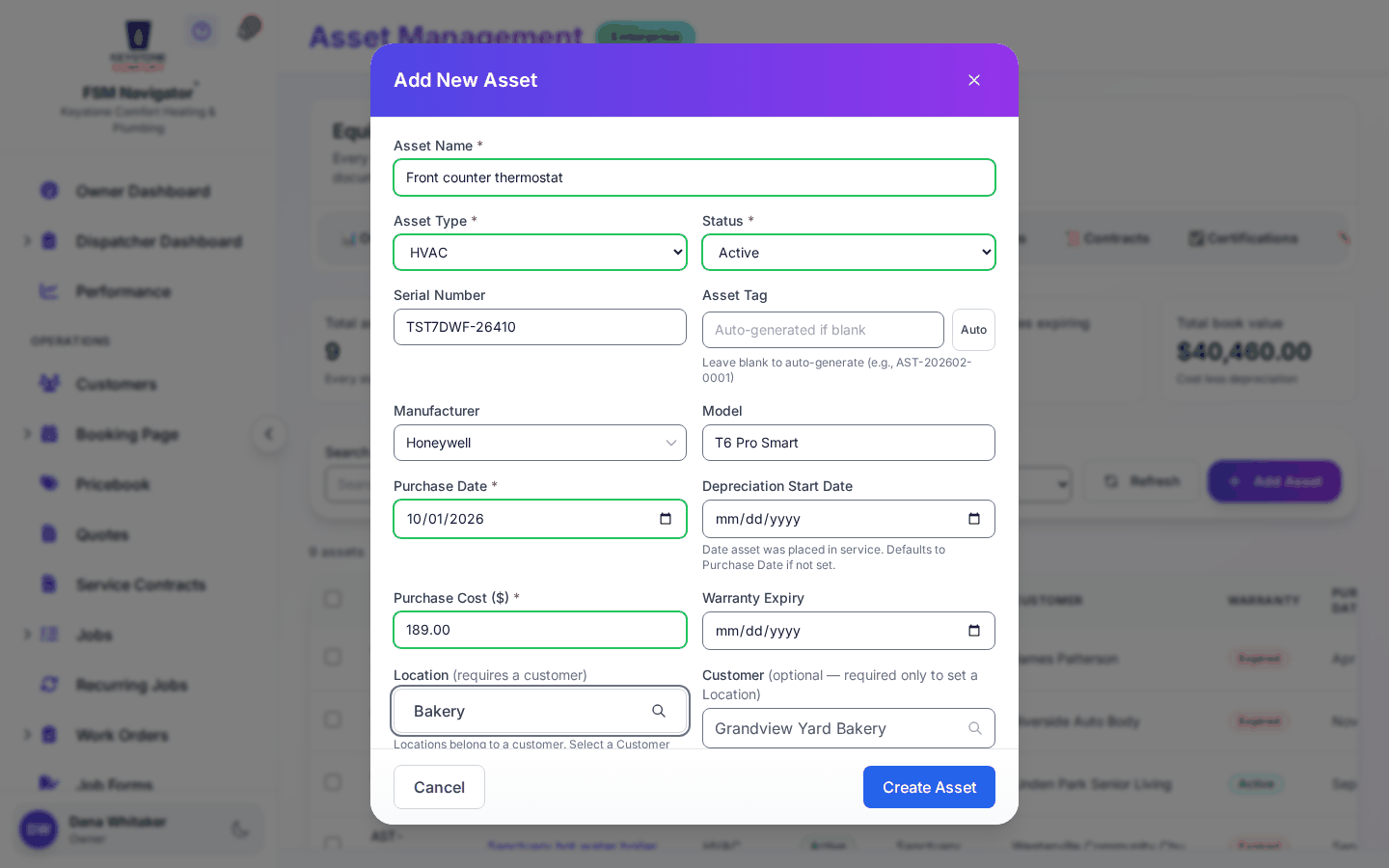
- Add an asset, pick its type, and choose the customer and service location it belongs to.
- Add warranty details on the Warranties tab and a maintenance plan on the Maintenance tab.
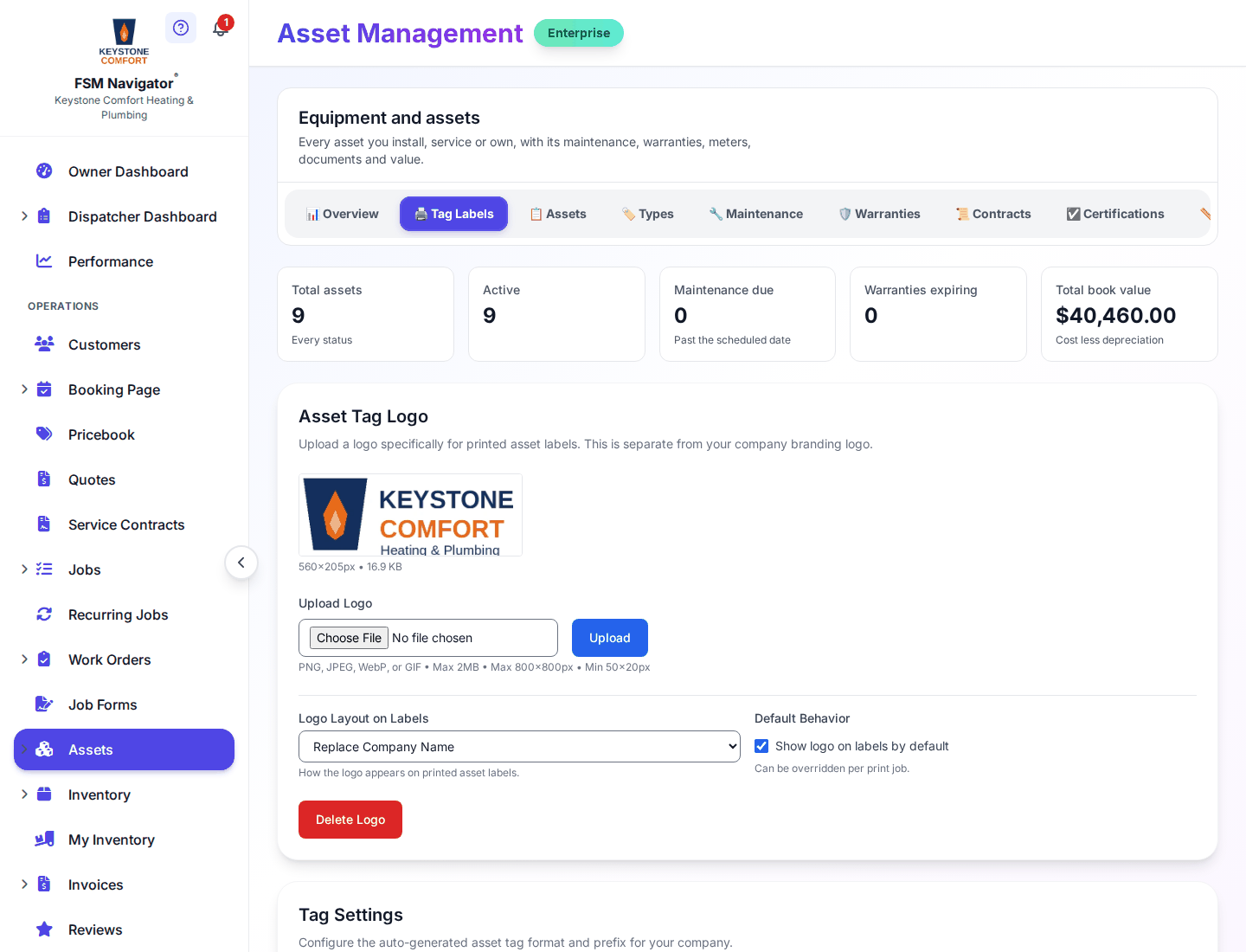
- Print a tag label from Tag Labels if you want technicians to scan the asset on site.
- When a job is at that location, open the job's Job History tab to see past work on the equipment.
- Watch the Alerts tab for maintenance and warranty items that need attention.
What happens next
- Previous stage: Customers and locations
- Next stage: Quotes and estimates
For the full detail, see Assets overview, Managing assets, Maintenance scheduling, Warranties, Meters and readings, Alerts and Assets on mobile.
Who can do this
| Action | Who can do it |
|---|---|
| View assets | Owner, Manager, Dispatcher, Inventory Manager, Asset Manager |
| Add and edit assets, see cost and depreciation | Owner, Manager, Asset Manager |
| Record transfers and maintenance | Owner, Manager, Asset Manager, Dispatcher |
| Import and export assets | Owner, Manager |
| Use the Assets menu in the mobile app | Owner, Asset Manager |
Tips and common questions
Does an asset move with the customer? An asset belongs to a location. If equipment moves, transfer it to the new location so its history follows it.
Can customers see their equipment? Yes, on Enterprise. The customer portal shows an Equipment page when asset management is on.
What's the difference between Retired and Decommissioned? Retired equipment can come back into service. Decommissioned is final.
Learn more about asset management.