FSM Navigator AI Connector¶
Enterprise feature
The AI Connector is on the Enterprise plan, and it's included in the 14-day Enterprise trial. AI access is on for Enterprise companies unless your Owner turns it off in Company Settings → AI Connections, where the Owner also chooses what your AI can read. Money data stays off until the Owner turns it on, and no AI app connects until a person approves it.
The FSM Navigator AI Connector links the AI assistant you already use to your FSM Navigator® account. Your assistant can read your jobs, customers and quotes, and draft quotes for your team to check and send. It works with Claude, ChatGPT, Gemini, Grok, and voice-agent platforms such as Vapi and Retell.
FSM Navigator doesn't run an AI of its own and doesn't charge AI usage fees. You use your own AI subscription and pay your AI provider directly. For an overview, see the AI Connector feature page.
Where the AI Connector fits in your day¶
The AI Connector helps at the points where your office writes to customers or answers the phone:
- First call. An AI receptionist answers, says it's an automated assistant for your company, and takes a Pending service request. Your team approves or declines it, as with an online booking. See Service requests.
- Quote. Ask your AI to turn a technician's notes into a quote, or to change the lines and options on a draft. The quote stays a Draft until someone sends it. See Quotes.
- Follow-up. When a sent quote has no answer, your AI can write the follow-up. A person reads it and selects Send follow-up.
- Membership and renewal. Your AI can draft a membership offer for one of your agreement plans, or a renewal quote for an agreement that ends soon. The price comes from the plan or the agreement, not from the AI. See Renewals.
- Looking things up. Between those steps, your AI answers questions such as "who's free tomorrow afternoon?" from the data your Owner allows.
Every message your AI writes follows your company's writing style, which an Owner sets in Company Settings → Sales Writing. See Sales writing.
The diagram shows one quote from request to acceptance. The AI only writes the draft: a person on your team checks it and sends it, and the customer's answer comes back to FSM Navigator, not to the AI.
sequenceDiagram
    actor You
    participant AI as Your AI app
    participant FSM as FSM Navigator
    actor Customer
    You->>AI: Ask for a quote from the job notes
    AI->>FSM: Read the job, customer and price book
    AI->>FSM: Save a draft quote
    FSM-->>AI: Writing check: OK, or what to change
    AI-->>You: Draft is ready to review
    You->>FSM: Open the draft in Quotes, check prices and wording
    You->>FSM: Send to customer
    FSM->>Customer: Email with a private link to the quote
    Customer->>FSM: Accept and sign, online or in person
    FSM-->>You: Quote shows as Accepted
After the customer accepts, you create the job, or a work order on Enterprise, as usual. See After the customer accepts.
Before you start¶
- Plan: your company is on Enterprise, or on the Enterprise trial.
- Not turned off: AI access is on unless your company's Owner has turned it off in Company Settings → AI Connections.
- Role: you're an Owner, Manager or Dispatcher. Technicians can't connect an AI app in this version.
- Your AI app's plan: your AI provider decides which of its plans allow custom connectors. Check your provider's help page (linked in each section below).
- The connector address: it's the same for every business:
Owners also see it in Company Settings → AI Connections, on the Connected apps tab.
Each person connects their own AI app, with their own sign-in. Your AI then sees exactly what you can see in FSM Navigator, for your company only.
What your AI can do¶
It can read (the kinds of data your Owner has turned on):
- customers and their service locations
- jobs, with their status, priority, due date and assigned technician, plus job notes, the equipment linked to a job, and the reasons your company uses for putting a job on hold
- recurring jobs and their next dates
- technicians and their availability, and each technician's jobs and shift on a given day. Time off isn't recorded in FSM Navigator, so your AI can't see it.
- quotes and pricebook items, including whether a quote is a regular quote, a membership offer or a renewal
- inventory, with quantities on hand and which items are low on stock
- purchase orders, with their status and quantities but not their costs
- equipment maintenance that's overdue or coming up, warranties that are about to expire, each piece of equipment's service history, and equipment alerts
- service agreements and what they cover, without their fees
- agreements coming up for renewal: which ones end soon, their plan and customer, whether a renewal is already in place and whether a renewal quote is open. For agreements that already ended without a renewal, your AI sees only how many there are, never who.
- service requests waiting for your team
- work order status and recurring work orders
- customer reviews and ratings
- a business summary for a date range: jobs completed, on-time rates, open backlog age, return visit rate, on-time arrival, returning vs first-time customers, customer retention, the number of lapsed customers, and mileage, with no dollar amounts. Your AI sees how many customers have lapsed, never their names.
Money data (invoices, payments, profitability and costs) is off unless your Owner turns it on, and then each person also ticks See financial information on the connect screen when connecting. Only Owners and Managers can approve it. When you ask "what's overdue?", your AI can find jobs past their due date and quotes without an answer.
It can draft:
- a quote for a customer, with lines from your pricebook or lines it writes
- changes to a draft quote's lines and options: add, change or remove a line, or add, rename or remove an option
- the cover message on a draft quote
- a membership offer: a quote for one of your agreement plans, with one option for each way the plan can be paid (monthly or yearly)
- a renewal quote for an agreement that's coming up for renewal
- a follow-up message for a quote the customer hasn't answered yet
A drafted quote stays a draft. Someone on your team opens it in FSM Navigator, checks the prices and wording, and sends it. The same goes for follow-ups: your AI writes the draft, and a person sends it from the quote.
Membership offers and renewal quotes are priced from the plan or the agreement, so your AI can't change their prices, and FSM Navigator adds the required terms when the quote is sent. Drafting these two needs someone who can manage agreements (an Owner or Manager), and your plan must include service agreements. A follow-up your AI writes never replaces one a person on your team wrote.
How drafts are checked:
Your AI can read your company's writing rules before it writes: the tone, how long each kind of message should be, words to avoid, and short example messages. These rules come with the Draft quotes access your Owner turns on. An Owner sets the tone, warmth, reading level, sign-off and words to avoid in Company Settings → Sales Writing, under Writing style, so drafts sound like your company rather than a generic assistant. See Sales writing.
When your AI saves a draft, FSM Navigator checks the text it wrote. It looks for things like:
- a price, percentage or date that doesn't match the quote
- pressure wording, such as "act now" or a deadline the quote doesn't have
- claims nobody can check, such as "best price in town"
- a guarantee, warranty or "free" offer with no terms behind it
- wording about terms, cancellation or automatic renewal, which belongs in your own terms, not in an AI's message
For these, the draft is saved either way. If something needs fixing, your AI is told what to change and can rewrite the message. Your team still reads every draft before it's sent.
Some wording is refused outright, and nothing is saved:
- text that threatens or insults the customer. Your AI is told: "This text threatens or insults the customer. Rewrite it in a polite, respectful tone."
- offensive or abusive language. Your AI is asked to rephrase it.
Ordinary trade wording that happens to share a word, such as "it won't hurt to check" or "the garbage disposal", is not refused.
It can't:
- send anything to a customer. The AI never emails or texts your customers.
- change a job, an invoice or the schedule
- assign a technician. Intelligent dispatch still does that.
- sign a customer up, renew an agreement or take a payment. An agreement starts or renews only when the customer accepts the quote.
- see another company's data, or anything your role can't see
Connect your AI app¶
First, the Owner checks what your AI can read¶
AI access starts on, with every kind of data turned on except money data. The Owner opens Company Settings → AI Connections, and on the AI access tab can turn AI access off or choose which kinds of data your AI can read. Money data, such as invoices, payments, profitability and costs, stays off unless the Owner allows it, and each person also approves it when connecting. Only Owners and Managers can approve money data. Nobody's AI can go beyond what the Owner allows, and if the Owner turns AI access off, every connection stops on its next request.
Then each person connects their own AI app:
Claude¶
- On Pro or Max: open Customize, then Connectors, select the + button and choose Add custom connector.
- On Team or Enterprise: an Owner of your Claude organization adds the connector once under Organization settings → Connectors. Each person then connects it from their own Connectors list.
- Paste
https://fsmnavigator.com/mcpand continue. - Approve the connection on the FSM Navigator screen (see Approve the connection).
Anthropic lists custom connectors on its Free, Pro, Max, Team and Enterprise plans. The Free plan allows one custom connector. See Anthropic's custom connector guide.
ChatGPT¶
- Turn on developer mode in ChatGPT's Apps settings. On Enterprise and Edu workspaces, a workspace administrator has to allow it first.
- Add a new app or connector and paste
https://fsmnavigator.com/mcp. Leave the OAuth settings as they are, with the default scopes ticked. - Create the connector, then approve the connection on the FSM Navigator screen.
If ChatGPT can't finish signing in
Open OAuth advanced settings before you create the connector. Under Client registration, set Registration method to Dynamic Client Registration (DCR), then create the connector again. FSM Navigator accepts both registration methods.
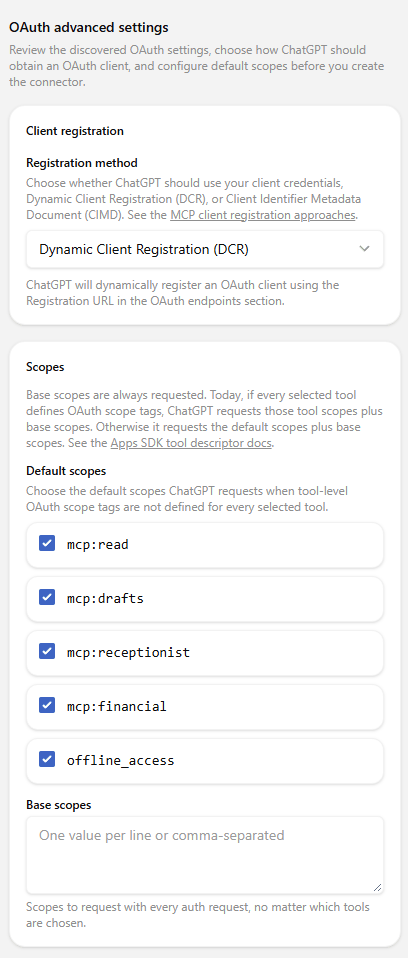
OpenAI lists full connector support for Business, Enterprise and Edu workspaces on the web. Plan details change, so check OpenAI's developer mode guide for yours. ChatGPT asks you to approve any action that changes data, such as drafting a quote.
Gemini¶
- Gemini app (personal Google accounts): open Settings → Connected Apps, add a custom app and paste
https://fsmnavigator.com/mcp. Google currently limits this to personal accounts in the US, in English. See Google's custom apps help page.- The Gemini app has no registration method to pick. It registers itself automatically (Dynamic Client Registration). If Gemini still says automatic registration failed, click Show more next to Advanced features and enter a client ID and secret your FSM Navigator Owner creates in Company Settings → AI Connections, on the App credentials tab.
- Gemini Enterprise (Google Workspace): custom connections are in preview at Google and are set up by your Workspace administrator. Your administrator needs a client registered in FSM Navigator first. Your FSM Navigator Owner creates one in Company Settings → AI Connections, on the App credentials tab, and the client secret is shown once, so copy it straight into Google's setup.
Grok¶
- Open Grok's connectors page and choose New Connector, then Custom.
- Paste
https://fsmnavigator.com/mcp. - Approve the connection on the FSM Navigator screen.
On Grok Business and Enterprise plans, a team administrator sets up the connector first. See xAI's connectors docs.
Other AI apps¶
Any AI app that supports custom connectors built on the Model Context Protocol (MCP) can connect with the same address and the same approval screen.
Approve the connection¶
When you add the connector, your AI app sends you to an FSM Navigator screen titled Connect followed by the app's name, for example "Connect My Assistant to FSM Navigator".
- Sign in as yourself, if you aren't already.
- Check the name of the AI app, the Company it can access, and What it can do. If the screen says FSM Navigator has not verified the app, approve it only if you started this connection yourself.
- Check Where you go next. It names the site you return to after you choose.
- If your Owner has turned on money data and you're an Owner or Manager, the screen shows Extra access you choose with a See financial information box. It starts unticked, and money data is shared only if you tick it.
- Select Approve, or Deny to stop.
- If you haven't signed in recently, a Confirm it's you box opens. Enter your password, or the code from your authenticator app if you use multi-factor authentication, and select Confirm. The approval then goes through. This check means someone who finds your computer unlocked can't connect an AI app to your account.
If AI access is turned off for your company, the screen says so. Ask your Owner to turn it on in Company Settings → AI Connections.
Then:
- You get a security email saying a new AI app was connected. You'll get another one if a removed connection is approved again. If you didn't connect it, remove it right away and change your password.
- The connection appears on your Profile, on the Security tab under My AI connections.
Try it¶
Start with questions you'd normally look up by hand:
- "Which jobs are due tomorrow, and who has each one?"
- "Summarize the Hendricks job, including the tech's notes."
- "Which quotes went out last week and haven't been answered?"
- "Which technicians are available right now?"
- "Who's free tomorrow afternoon?"
- "Which items are low on stock?"
Then try a draft: "Turn the tech's notes on the Alvarez job into a quote." Open Quotes in FSM Navigator to find the draft, check it and send it.
For renewals, try: "Which agreements end this month? Draft a renewal quote for the Patel agreement," or "Write a follow-up for the quotes we sent last week that haven't been answered."
AI assistants can misread a record or fill a gap with a guess. For anything that matters, open the record in FSM Navigator and check.
Remove a connection¶
- Open your Profile and select the Security tab.
- Under My AI connections, find the AI app and select Disconnect.
The AI loses access on its next request. Review this list now and then and disconnect any AI app you don't recognize. Your company's Owner can also remove any connection in the company from the Connected apps tab of Company Settings → AI Connections, and any key from Company Settings → API Keys.
If your company leaves the Enterprise plan, or your Owner turns off AI access, every AI connection stops working on its next request. When the Owner turns AI access back on, connections work again without reconnecting, as long as they haven't expired.
See how much your AI has used¶
Your company gets a daily allowance of AI requests, of AI quote drafts and edits, and of service requests from an AI receptionist. Each connected app can also only make so many requests a minute.
- Owners: open Company Settings → AI Connections and select the Usage tab. Under Daily AI allowance, each meter (AI requests, AI quote drafts and edits and Service requests from an AI receptionist) shows how many requests are available now and how many are still refilling, and when it will be full again, in your company's time zone. Below that, Requests by connected app lists how many requests each app, person and connector key made in the last 24 hours.
- Everyone who connects an AI app: open Profile → Security. Under Your AI usage you see how many requests each of your own apps made in the last 24 hours, your share of the company's requests, and how much of the company's daily allowance is left.
Select Refresh to update the numbers.
Allowances refill gradually
An allowance doesn't reset at midnight. It refills a little at a time, so requests made yesterday morning have already come back. That is why a meter can read full while Requests by connected app still lists requests from earlier in the day. When an allowance runs out, your AI app is asked to try again a little later. Nothing is lost.
AI connector results¶
Below the allowances, Owners see the AI connector results card. It shows what connected AI apps did for your company over recent weeks, in four groups:
- Draft quotes: Drafts written, how many were Sent to the customer, how many are Not sent yet, and the Share sent.
- Writing checks on drafts: Drafts checked, Checks run, Checks that asked for changes, the Share asking for changes and the Typical changes per draft.
- AI receptionist: Service requests taken, and how many were Approved, Declined, Waiting for review or Cancelled, with the Share approved.
- Connections and requests: AI requests, Connected apps, People with a connection, Connections with financial access, Requests turned away, and requests Blocked by your AI access settings, listed by kind of information.
A dash means there is nothing to measure yet. Select Refresh to update the card. Use it to see whether drafts are being used: a high share of drafts that are never sent, or many checks asking for changes, is a sign to adjust your writing style.
Your data and privacy¶
- Your AI provider sees what you ask about. When you ask about a job, that job's details go to your AI provider so it can answer. Use a business plan with your provider and check its data policy on how long it keeps conversations.
- Only what the Owner allows, and only what you can see. Your AI reads the kinds of data turned on under What your AI can see and do, limited to what your own role can see. Quotes and the price book never include your costs.
- Money data stays off until the Owner turns it on and you tick See financial information when connecting.
- Some answers are counts, not names. For example, the business summary says how many customers have lapsed, never who they are.
- Nothing is sent for you. Drafts and service requests wait in FSM Navigator for a person.
- It's on the record. Each AI request is logged in your company's audit trail, and your AI connections are part of your company's data export.
- You can stop it at any time. Disconnect an app under Profile → Security → My AI connections. The Owner can disconnect any app, or turn off Let AI apps connect for the whole company.
Security¶
The short version
Your AI signs in as you, sees what you can see, and can only draft. Nothing reaches a customer until a person sends it.
- Your own sign-in. Every connection uses the connecting person's FSM Navigator login and role. A Dispatcher's AI sees what a Dispatcher sees.
- You approve it. Nothing connects without the connect screen and your click, and FSM Navigator asks you to confirm it's you if you haven't signed in recently.
- You hear about it. The person who connected the AI app gets a security email for every new or re-activated connection.
- The Owner decides. AI access is on until your Owner turns it off, money data is off until your Owner turns it on, and the Owner chooses which kinds of data any AI in the company can read. Money data needs the Owner's switch and each person's own tick.
- You can turn it off. Disconnect it under Profile → Security → My AI connections, and the AI loses access on its next request.
- Voice keys do one job. A receptionist key can only look up openings, read your writing rules and create Pending service requests. No key can draft quotes. Drafting always needs a signed-in person.
- It's logged. Every AI action is recorded in your company's audit trail.
- It has limits. Usage limits apply per connection and per company. See how much your AI has used.
- Text in your records is treated with care. Text written into your records, such as a job note or a customer's request, is marked as untrusted when your AI reads it. That makes it harder for someone to hide instructions to the AI inside a message.
- Your AI provider sees what you ask about. When you ask about a job, that job's details go to your AI provider so it can answer. Use a business plan with your provider and check its data policy.
AI receptionist (voice agents)¶
A voice-agent platform such as Vapi or Retell can answer your phone and turn each call into a Pending service request. Nothing goes on the schedule until your staff confirm it. The AI receptionist page walks through a call from start to finish.
What you need¶
- Your online booking page published and taking requests. The agent offers the services and arrival windows from that page, and the same service area rules apply.
- An account with a voice-agent platform, and a phone number through it. The platform bills you for calls.
- A receptionist key, which your Owner creates in Company Settings → API Keys.
- Your consent line, which your Owner writes in Company Settings → AI Connections, on the Connected apps tab.
Create a receptionist key¶
- Your Owner opens Company Settings → API Keys and creates a new key.
- Choose the AI receptionist option.
- Copy the key. It's shown once.
- In your voice platform, add an MCP tool with the address
https://fsmnavigator.com/mcp, and send the key as a bearer token in theAuthorizationheader.
A receptionist key can only look up your bookable services, open arrival windows, consent line and writing rules, and create a Pending service request. It can't read your customer list or draft quotes.
Write your consent line¶
The agent reads your consent line at the start of every call. FSM Navigator also tells the agent to say, at the start of every call, that the caller is talking with an automated assistant for your company, so your line doesn't have to carry that part alone. There's no default for the consent line, and the field can be left blank, so write one before you go live. For example:
"Thanks for calling Ridgeline Heating and Air. You're talking with our automated assistant, and this call may be recorded. You can ask for a person at any time."
Set up an emergency transfer¶
We recommend setting your voice agent to transfer urgent and emergency calls, such as a gas leak, no heat or flooding, to a person on your team. Use your voice platform's own transfer feature. The transfer happens in the voice platform, not in FSM Navigator.
What happens on a call¶
- The agent says it's an automated assistant for your company and reads your consent line.
- It takes the caller's name, phone number, service address and the problem. The phone number is required. Email is optional.
- It checks your open arrival windows and offers one.
- It creates a Pending service request. It lands in the same review queue as your online booking requests, and your team gets the usual new-request notice.
- If the caller gave an email and confirmed it when the agent read it back, they get a receipt email. Otherwise there's no email, and your staff call back.
- Your team approves, adjusts or declines the request.
FSM Navigator doesn't receive or store call recordings. Your voice platform handles the call, so its settings decide what's recorded and kept.
Consent and recording rules¶
General information, not legal advice
Several US states require every party's consent to record a phone call, including California (Penal Code §632.7), Florida (§934.03), Illinois (720 ILCS 5/14-2) and Washington (RCW 9.73.030). Maine requires clear notice when an AI chatbot could lead someone to think they're talking to a person (10 M.R.S. §1500-Y). The FCC treats AI-generated voices as "artificial or prerecorded voice" under the TCPA (FCC 24-17), which mainly affects calls you make, such as AI callbacks. Say it's an automated assistant and that the call may be recorded, in the first few seconds, and check your own state's rules with your lawyer.
Common questions¶
Does FSM Navigator charge for AI? No. You pay your AI provider or voice platform directly. FSM Navigator doesn't charge AI usage fees.
Can my AI send a quote to a customer? No. It drafts. A person on your team sends it from FSM Navigator.
Why can't a Technician connect? The first version is for office roles: Owners, Managers and Dispatchers.
Is this the same as intelligent dispatch? No. Intelligent dispatch matches technicians to jobs. The AI Connector lets your own AI read your data and draft quotes. It doesn't assign anyone.
Claude is a trademark of Anthropic, PBC. ChatGPT is a trademark of OpenAI. Gemini is a trademark of Google LLC. Grok is a trademark of xAI. Vapi and Retell are trademarks of their respective owners. FSM Navigator is not affiliated with or endorsed by these companies.