How customers and service locations work
What it is
A customer record holds who you work for: their name, contact details and history with you. Each customer has one or more service locations, which are the addresses where the work happens. One location is marked as the default for billing and notifications.
Where it fits
flowchart LR
    S[Booking page or call] --> C[Customer]
    C --> L[Service location]
    L --> A[Assets at the location]
    C --> Q[Quote]
    L --> J[Job]
    C --> I[Invoice]
    C --> G[Service agreement]
Everything else in FSM Navigator hangs off the customer. A job is attached to a service location, and the customer follows from that location. Quotes, invoices and service agreements belong to the customer.
Statuses
stateDiagram-v2
    direction LR
    [*] --> Active : Customer added
    Active --> Inactive : Deactivate
    Inactive --> Active : Restore
A customer is either Active or Inactive. The customer list shows Active customers by default; switch the filter to Inactive or All to find the others. Deactivating hides a customer from day-to-day lists, and Restore brings them back.
Step by step
- Open Customers from the side menu. The list is titled "Your customers".
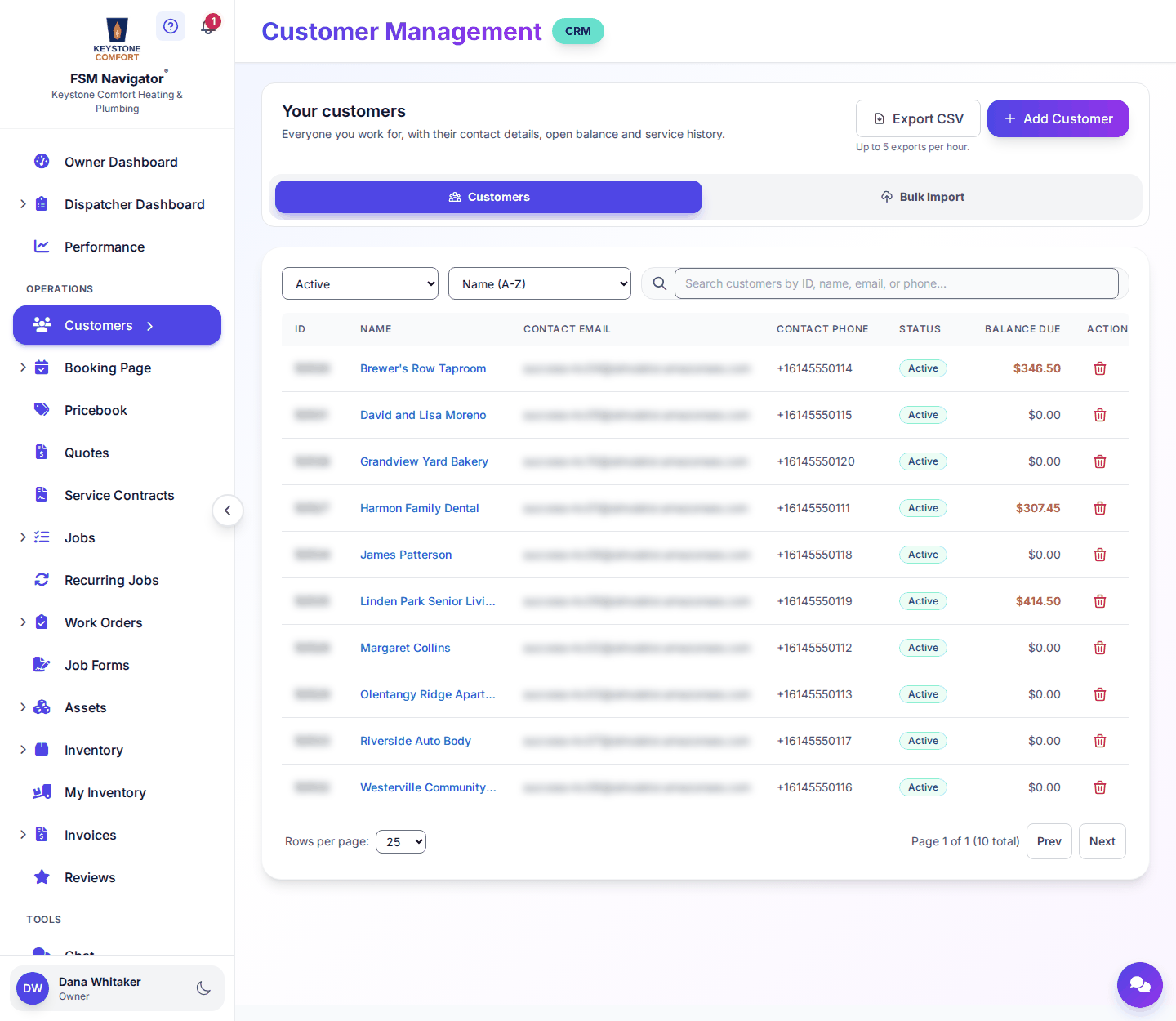
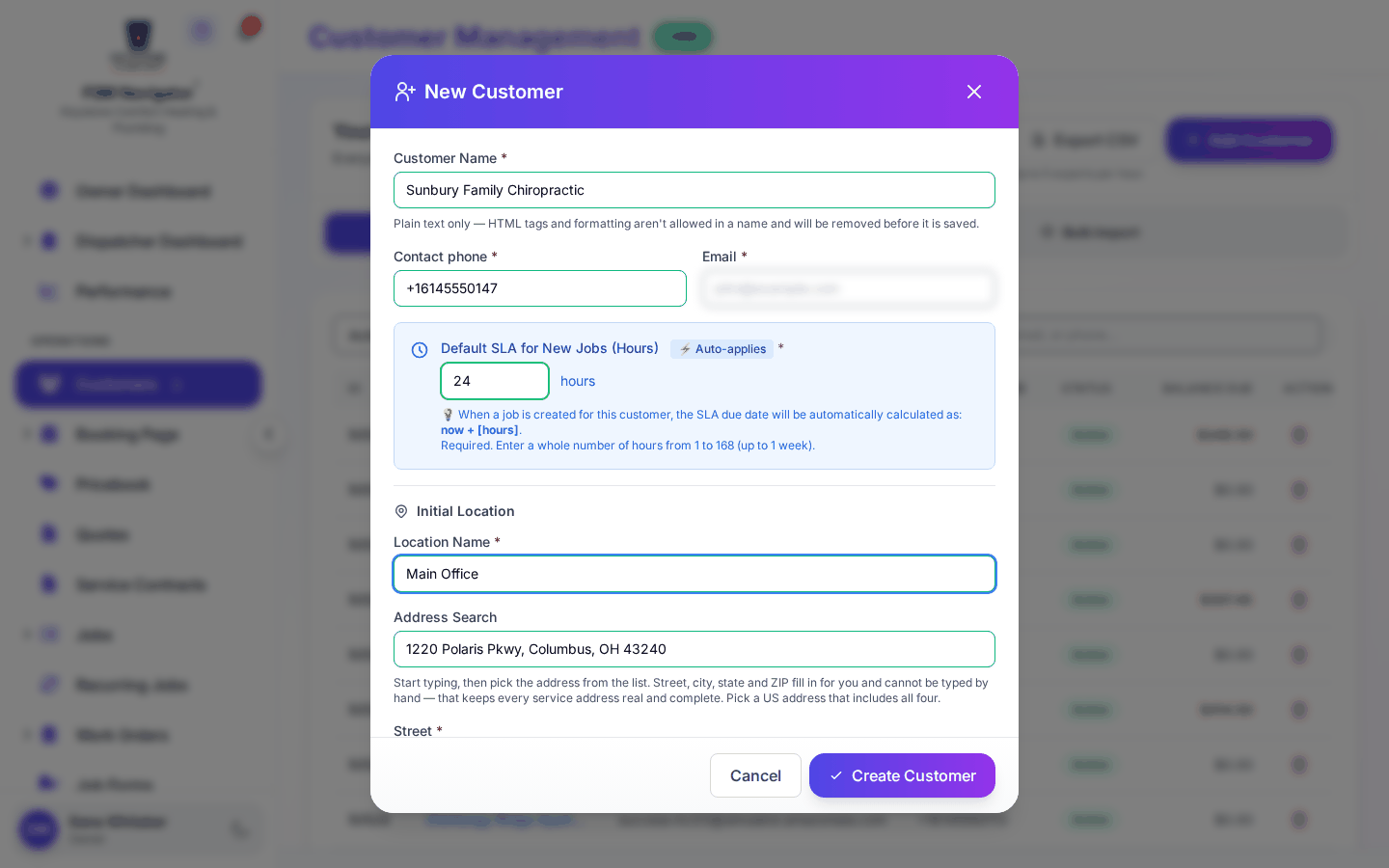
- Add a new customer and fill in their name and contact details.
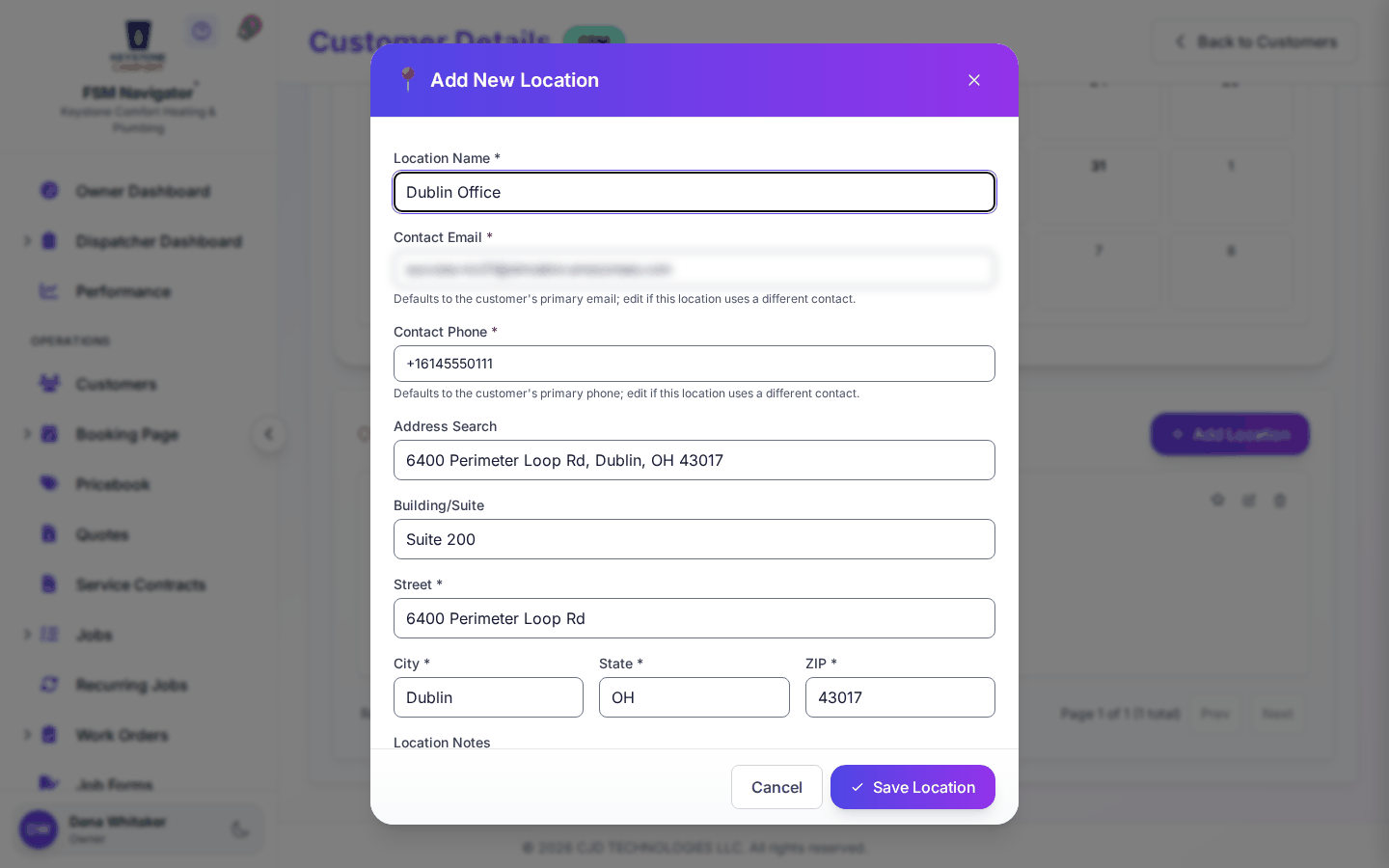
- Add a service location: give it a Location Name, then search for the address or type it in (Building/Suite, Street, City, State, ZIP). Contact email and phone default to the customer's, and you can change them per location.
- If the customer has more than one address, add each as its own location and choose which one is the Default location for billing and notifications.
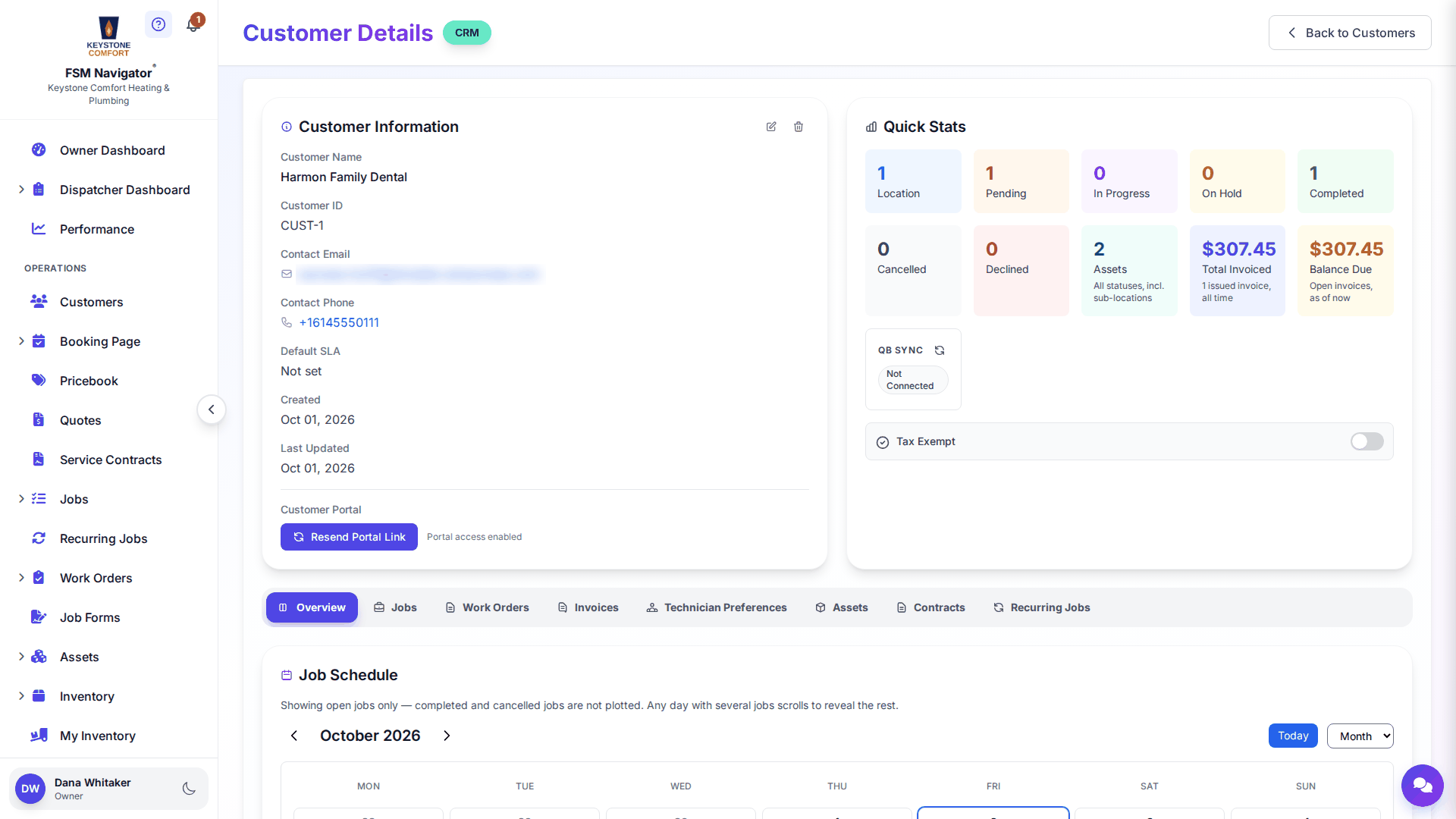
- Open the customer to see Customer Information, Quick Stats, and tabs for their Jobs, Work Orders, Invoices and Technician Preferences. Depending on your plan you'll also see Contracts, Recurring Jobs and Assets.
- On Pro, invite the customer to the customer portal so they can see invoices, send service requests and pay online.
What happens next
- Previous stage: this is where the lifecycle starts. Go back to the overview.
- Next stage: record the equipment at each location in Assets, or go straight to pricing the work in Quotes and estimates.
For the full detail, see Managing customers, Customer locations, Customer details, Customer preferences, Bulk import, the customer portal, service requests and creating a customer on mobile.
Who can do this
| Action | Who can do it |
|---|---|
| View customers and locations | Every staff role |
| Add or edit locations, export the list | Owner, Manager, Dispatcher |
| Create, edit, deactivate or restore a customer | Owner, Manager |
Tips and common questions
Can one customer have several addresses? Yes. Add each address as a location. Jobs, assets and service visits are tied to the location, so a landlord with ten rental units keeps one customer record and ten locations.
What does "Pending Consent" mean? You invited a customer to your portal who already uses the portal with another company. They need to accept before the link is complete.
What does the customer see in the portal? The portal menu shows Dashboard, Invoices, Service Requests, Service Projects and Profile, plus Quotes and Equipment when those features are on. Customers see "service request", never internal job wording.
Learn more about the customer portal.